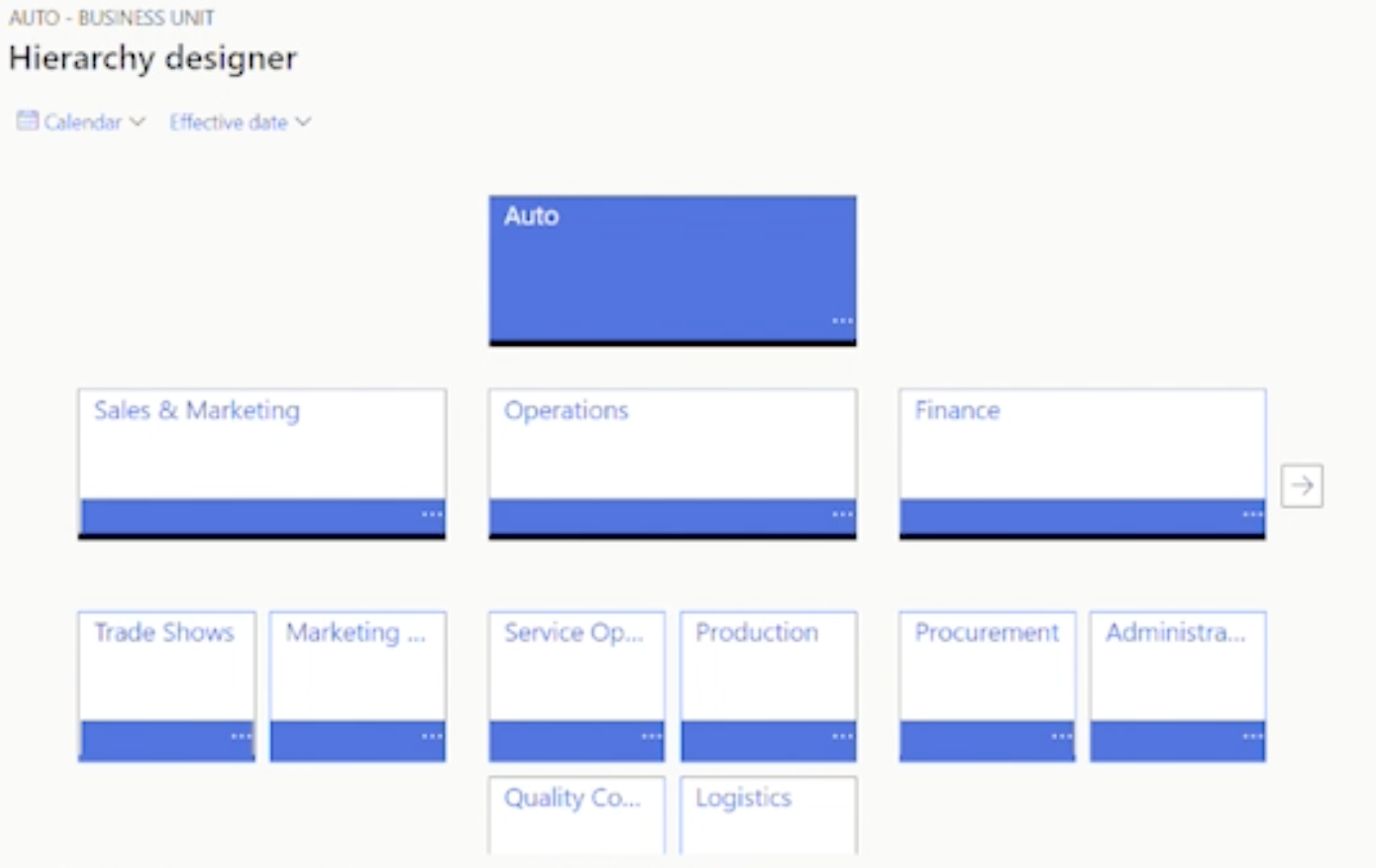
If a merger or acquisition is on your horizon, many of the processes you’re responsible for can be simplified and completed more quickly with tools readily available in Dynamics 365 Finance. You can improve consistency and speed up the rollout of technology to disparate companies and operations with a global template that can be easily created with Dynamics 365 Finance. A global template is an approach that you can use to help create consistency and speed out the rollout of your technology solutions to many different disparate companies or operations around the globe. A good global template approach has the following three key pillars: customization, localization, and standardization.
- Customization: What can and cannot be customized?
- Localization: Consider language, legal government regulations, currency, and taxes.
- Standardization: Identify and apply standard processes, configuration, and data where possible.
When using a global template approach, documentation is essential. Much of the documentation you’re responsible for can be simplified and completed more quickly with tools readily available in Dynamics 365 Finance.
Tool 1: Shared Chart of Accounts
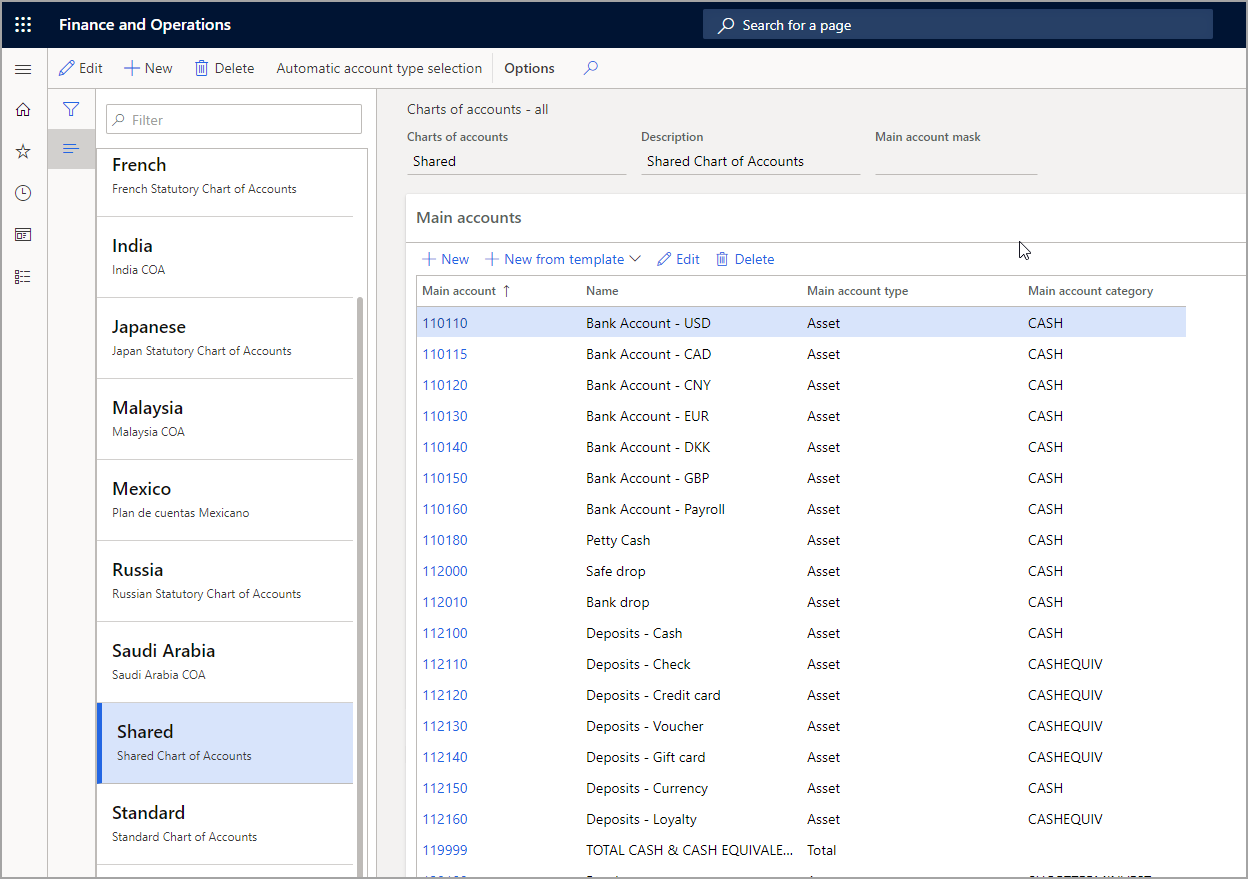
It is critical for any organization to have a well-defined chart. We recommend sharing and standardizing your chart whenever possible. You can do this easily by creating a single chart with many different main accounts. Then, you can link the chart of accounts into the ledge in each company in D365 Finance. Microsoft supports a legal entity override, so you can manage the exceptions and disable accounts where they’re not needed.
Tool 2: Copy Legal Entities
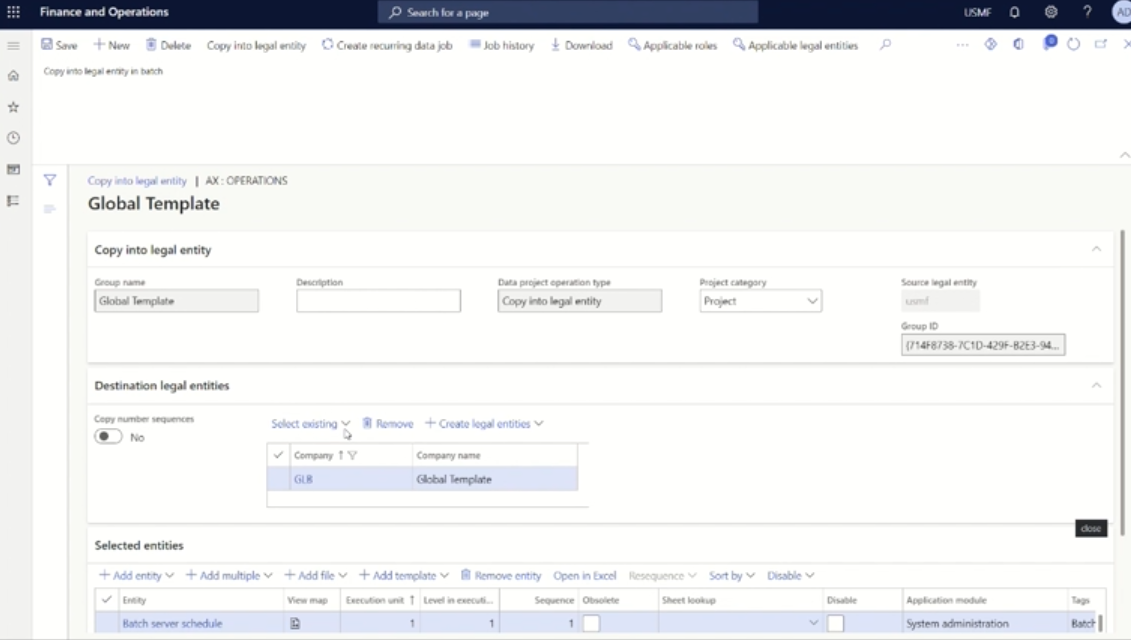
We recommend creating a legal entity where that global template configuration will live and securing that entity to the users within your organization who are empowered to make changes to that template. When you’re ready to roll out a new company, open the data management workspace and click copy into legal entity. Give your project a name and either select an existing legal entity or create a new one. On the selected entities fast tab, you can quickly select all the data that you want to copy, then click copy into legal entity on the action pane.
Tool 3: Cross-Company Data Sharing
This tool can be complementary to the ability to copy configurations across companies. With this feature, the data cannot be edited in each company. Instead, an update to data makes the same change to all companies where the data is being shared. You can define policies to control exactly which fields, which data entities, and which legal entities will be shared.
Tool 4: Shared Services
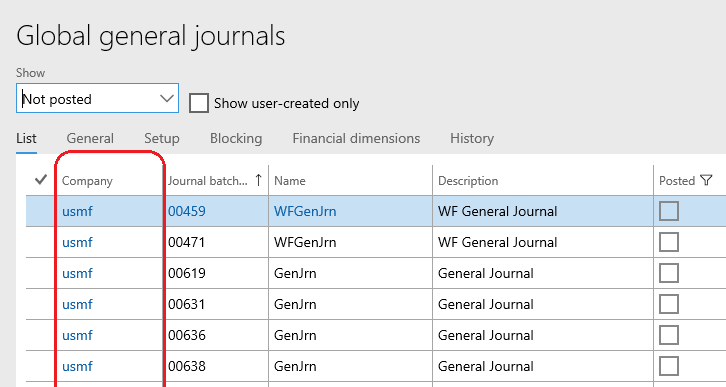
Shared services are often employed by organizations or operations that are disparate around the globe. Shared services offer the benefits of cutting costs, centralizing operations, and standardizing processes. D365 has introduced global versions of many pages that shared services personnel can use to quickly enable quick data entry and visibility of transactions. You can even make cross-company entries with one action.