









Reviews and corrects ledger-to-subledger alignment in D365 by fixing posting configurations, inventory profiles, reconciliation logic, GL mapping, and critical reporting procedures.
When LCS Certificate Rotation Fails: The Quiet WinRM Certificate Behind the Curtain
Posted on: June 9, 2026 | By: Kyle Valerio | Microsoft Dynamics AX/365, Microsoft Dynamics AX/365|Microsoft Dynamics Manufacturing
Every so often, a Dynamics 365 Finance & Operations development VM reminds us that certificates are like milk: they expire quietly, and then suddenly everyone is having a bad morning.
The symptom usually looks innocent enough. You go into Lifecycle Services (LCS), run the normal SSL certificate rotation, and the process comes back as Incomplete. No fireworks. No dramatic system collapse. Just enough ambiguity to ruin your next hour.
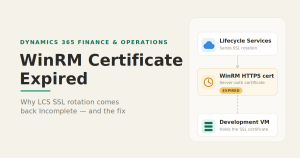
In the process document provided, the root cause was an expired Windows Remote Management (WinRM) HTTPS certificate on a D365 Finance & Operations development VM. The documented recovery path was straightforward: identify the WinRM HTTPS listener, confirm the expired certificate by thumbprint, create a new certificate, rebuild the HTTPS listener, test WinRM over SSL, and then rerun the SSL certificate renewal through LCS.
Logan reality check: sometimes the certificate you are trying to rotate fails because a different certificate—the one used to communicate with the VM—is already expired. That is the kind of infrastructure irony that keeps consultants humble.
Why this happens
Cloud-hosted Dynamics 365 development environments are commonly managed through Lifecycle Services, and Microsoft documents that LCS is where you access cloud-hosted environments, retrieve Remote Desktop credentials, and manage the environment lifecycle.
For one-box environments under your subscription, Microsoft has long supported rotating SSL certificates through LCS by going to the environment details page and selecting Maintain > Rotate secrets > Rotate SSL certificates. Microsoft also notes that this option appears when the environment is in a Deployed state, and that environment history is updated after rotation completes.
But LCS still needs to communicate with the VM to perform work. That is where WinRM matters.
WinRM over HTTPS uses a listener tied to a certificate. Microsoft’s WinRM guidance states that WinRM HTTPS requires a local computer server-authentication certificate whose common name matches the hostname and that the certificate must not be expired or revoked. WinRM HTTPS uses port 5986 by default on modern Windows versions.
So when that WinRM HTTPS certificate expires, LCS may not be able to complete the remote operation required to rotate the visible SSL certificate. The front door is locked because the key to the maintenance room expired first. Perfectly logical. Deeply annoying.
The practical recovery pattern
The process from the uploaded document follows a clean troubleshooting sequence. Here’s the Logan-style version, with a little extra context and caution.
1. Identify the WinRM HTTPS listener
Run:
winrm enumerate winrm/config/listenerYou are looking for the HTTPS listener and its CertificateThumbprint. Microsoft also documents this command as the way to confirm WinRM is listening on HTTPS.
This thumbprint is the breadcrumb. Follow the breadcrumb.
2. Check whether the certificate expired
Use PowerShell to find the certificate in the Local Machine personal certificate store:
Get-ChildItem Cert:\LocalMachine\My |
Where-Object {$_.Thumbprint -eq '<thumbprint>'} |
Format-List Subject,Issuer,Thumbprint,NotBefore,NotAfter
In the provided process document, the NotAfter date was in the past, confirming the WinRM certificate had expired. Page 1 of the document also includes a screenshot showing the expiration check and the “NotAfter” value used to validate the root cause.
This is the moment where the mystery becomes less mysterious and more “calendar-based betrayal.”
3. Create a replacement certificate
For a D365 development VM recovery scenario, the document uses:
$cert = New-SelfSignedCertificate `
  -DnsName '<ServerName>' `
  -CertStoreLocation 'Cert:\LocalMachine\My'

$cert.Thumbprint
Microsoft documents that New-SelfSignedCertificate creates a self-signed certificate for testing purposes and can create it in Cert:\LocalMachine\My. Microsoft also notes that if NotAfter is not specified, examples using this cmdlet default to a one-year expiration.
Important nuance: Microsoft’s general WinRM HTTPS guidance recommends a proper server-authentication certificate and says the certificate should not be self-signed. In a development VM recovery situation, teams often use a self-signed certificate to restore WinRM connectivity and unblock LCS rotation. For production-like environments, follow your organization’s certificate policy and use an appropriate CA-issued certificate.
Translation: self-signed may be a practical development fix. It is not a philosophy.
4. Recreate the HTTPS listener
Delete the old HTTPS listener:
winrm delete winrm/config/Listener?Address=*+Transport=HTTPSThen create a new HTTPS listener using the new thumbprint:
winrm create winrm/config/Listener?Address=*+Transport=HTTPS ^
@{Hostname="<ServerName>";CertificateThumbprint="<NewThumbprint>"}
The uploaded process document shows this exact rebuild pattern and then verifies the listener again with winrm enumerate winrm/config/listener. Page 2 includes a screenshot of the listener output after the new HTTPS listener is created.
Practical tip: do this from RDP/local admin access, not through the WinRM connection you are actively replacing. Sawing off the branch you’re standing on remains a questionable engineering strategy.
5. Test WinRM over SSL
Run:
Test-WSMan <ServerName> -UseSSLMicrosoft’s Test-WSMan documentation states that -UseSSL uses SSL/HTTPS, and the command fails if SSL is not available on the port being used.
For self-signed certificates, you may still see trust-related warnings depending on the client and trust chain. The key is that the expiration problem is resolved and WinRM over HTTPS is functional again.
6. Rerun SSL certificate rotation in LCS
Once WinRM is healthy, return to Lifecycle Services and run the SSL certificate renewal again through Maintain > Rotate secrets > Rotate SSL certificates. Microsoft’s Dynamics 365 blog notes that project owners or environment managers can rotate certificates from LCS for one-box environments under their subscription.
In the uploaded process document, the before-and-after screenshots on page 3 show the SSL certificate validity changing after the recovery, and the stated root cause was that the expired WinRM HTTPS certificate prevented LCS from communicating properly with the VM to perform certificate rotation.
What this teaches us
This issue is easy to treat as a one-off infrastructure nuisance. It is more useful to treat it as a small lesson in environment governance.
Development environments are often where governance goes to “just this once.” Certificates expire. Admin credentials get stale. VMs sit idle. LCS operations are attempted only when something is already broken.
A better operating model is simple:
- Track SSL and WinRM certificate expiration dates.
- Add reminders at least 30–60 days before expiration.
- Document the active listener thumbprint.
- Keep RDP access validated for emergency recovery.
- Use CA-issued certificates where policy requires it.
- After renewal, verify both the D365 endpoint and WinRM connectivity.
- Record the fix in an internal runbook.
Logan POV: if the only person who knows how to fix a dev VM certificate issue is “whoever did it last time,” you do not have a process. You have folklore with admin rights.
Final thought
Certificate issues in D365 development environments are rarely glamorous. But they can stop real work quickly.
The key insight is that LCS certificate rotation depends on the VM being reachable through the management channels required to perform the rotation. If the WinRM HTTPS certificate expires, the normal LCS path may fail with an incomplete status even though the visible problem looks like an SSL renewal issue.
The fix is not complicated. The discipline around preventing it is where teams usually fall short.
Renew the WinRM certificate. Rebuild the HTTPS listener. Validate with Test-WSMan -UseSSL. Then rerun the LCS SSL rotation.
And maybe put a calendar reminder in place this time. Certificates do not care that everyone is busy.


