








Reviews and corrects ledger-to-subledger alignment in D365 by fixing posting configurations, inventory profiles, reconciliation logic, GL mapping, and critical reporting procedures.
Microsoft Graph Email in D365 Finance & Operations: Modern Email Without the Secret Management Headache
Posted on: July 2, 2026 | By: Heather Zhu | Microsoft Dynamics AX/365|Microsoft Dynamics Manufacturing, Microsoft Dynamics AX/365
Email configuration in Dynamics 365 Finance & Operations is one of those topics that sounds simple until it is not.
You set up outbound email. You send invoices, workflow notifications, statements, alerts, batch messages, and operational communications. Everyone moves on.
Then one day emails stop sending, authentication fails, a secret expires, SMTP gets grumpy, or someone asks why a business-critical ERP process still depends on a password hidden in a configuration screen like a raccoon in the ceiling.
That is why Microsoft Graph matters.
For organizations using Microsoft 365, Microsoft identifies Microsoft Graph as the recommended email provider for Dynamics 365 finance and operations apps, and notes that it replaces the deprecated Exchange email provider. Microsoft Graph is available in Dynamics 365 Finance version 10.0.38 and later.
The process you shared takes the modern approach one step further: configuring Microsoft Graph email in D365 Finance & Operations using federated credentials, which removes the need to store a client secret or certificate in the application configuration.
Logan POV: email may not be glamorous, but when ERP email fails, everyone suddenly remembers how important “boring infrastructure” really is.
Why email configuration deserves more attention
Outbound email in D365 is not just a technical convenience. It supports core business processes:
- Workflow approvals
- Customer statements
- Vendor communications
- Invoices and documents
- System alerts
- Batch-generated notifications
- Operational reporting
When email fails, the issue is rarely isolated. Approvals stall. Customers do not receive documents. Users work around the system. Finance asks why the notification never went out. IT gets pulled into a troubleshooting session with the energy of a family meeting no one wanted.
Microsoft’s email subsystem is influenced by administrator configuration, user configuration, and user choices, which means email behavior is not controlled from one magic field. Administrators configure high-level behavior on the Email parameters page, including the batch email provider, attachment size limits, email expiration, history retention, and related settings.
That flexibility is useful, but it also means setup discipline matters.
Why Microsoft Graph is the better direction
For years, many organizations relied on SMTP because it was familiar. SMTP is still available, but it carries baggage.
Microsoft’s D365 documentation is very clear that finance and operations apps do not support multifactor authentication or modern authentication for SMTP. Microsoft notes that the Microsoft Graph email provider can be used when a more modern integration is desired.
That is the key point.
Microsoft Graph moves D365 email away from old-school credential patterns and toward modern authentication. Instead of depending on SMTP AUTH, stored passwords, and authentication exceptions, Graph uses Microsoft identity platform concepts and application permissions.
For D365 administrators, the practical value is simple:
- Better alignment with Microsoft 365 security direction
- Reduced reliance on SMTP authentication
- Cleaner support for batch and non-interactive sending
- Better fit for modern identity governance
Translation: fewer “why did this password stop working?” mysteries. The world has enough mysteries already.
Where federated credentials change the game
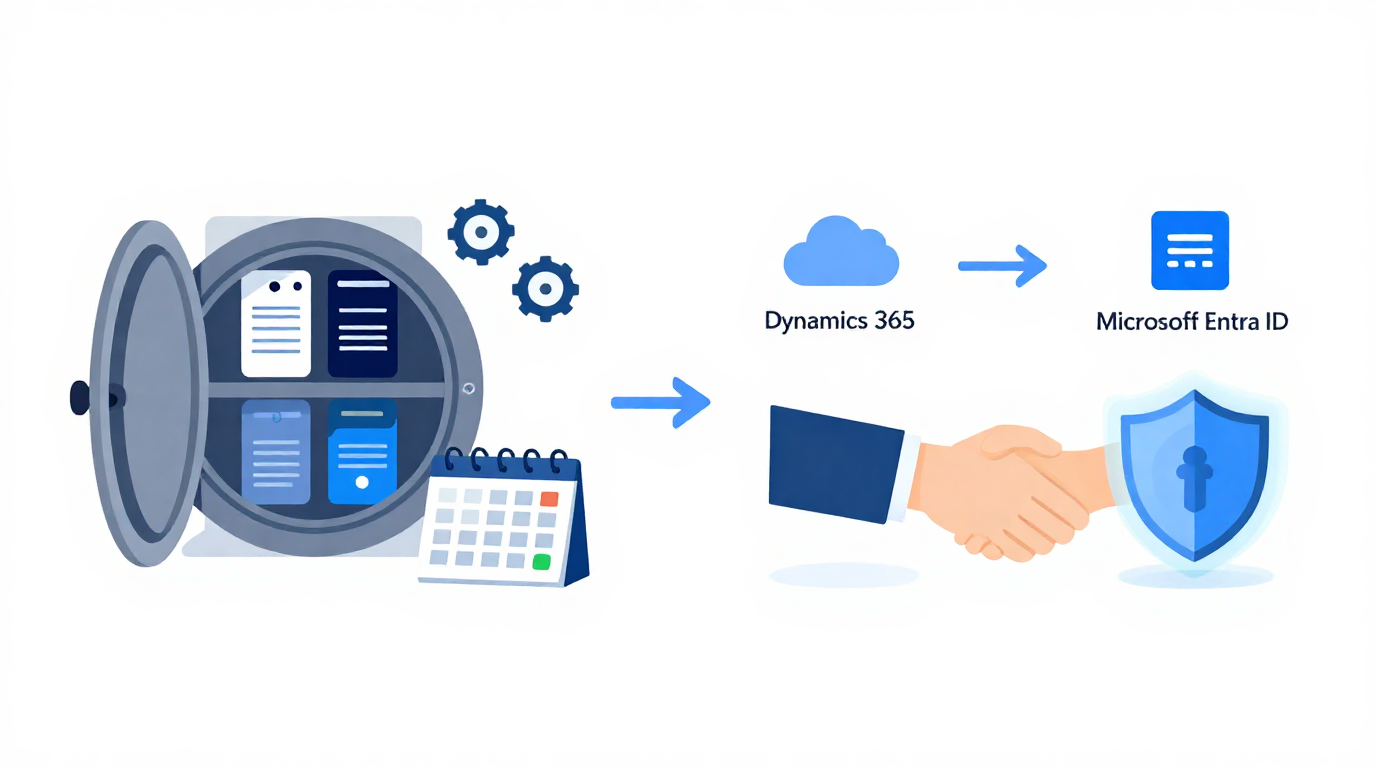
Microsoft’s standard D365 email configuration documentation still describes a Microsoft Graph setup using an app registration, the Mail.Send application permission, admin consent, and an application secret entered into D365.
Your internal process modernizes that by using federated credentials. In the document, the Microsoft Graph settings page in D365 exposes federated credential details like Issuer, Subject Identifier, and Application ID. The Entra app registration is then configured with a federated credential using those values, including the audience value api://AzureADTokenExchange.
That design is meaningful because Microsoft’s federated identity credential guidance explains that workload identity federation allows a workload to access Microsoft Entra-protected resources without managing secrets, reducing the maintenance burden of certificates and secrets, lowering leakage risk, and avoiding service disruptions caused by expired credentials.
This is the real win.
A client secret works until it expires, gets mishandled, or becomes another calendar reminder someone forgot to renew. Federated credentials replace that with a trust relationship between the workload identity and the Microsoft Entra app registration.
Logan reality check: every secret you do not store is one less secret waiting to become a future outage.
The practical setup flow
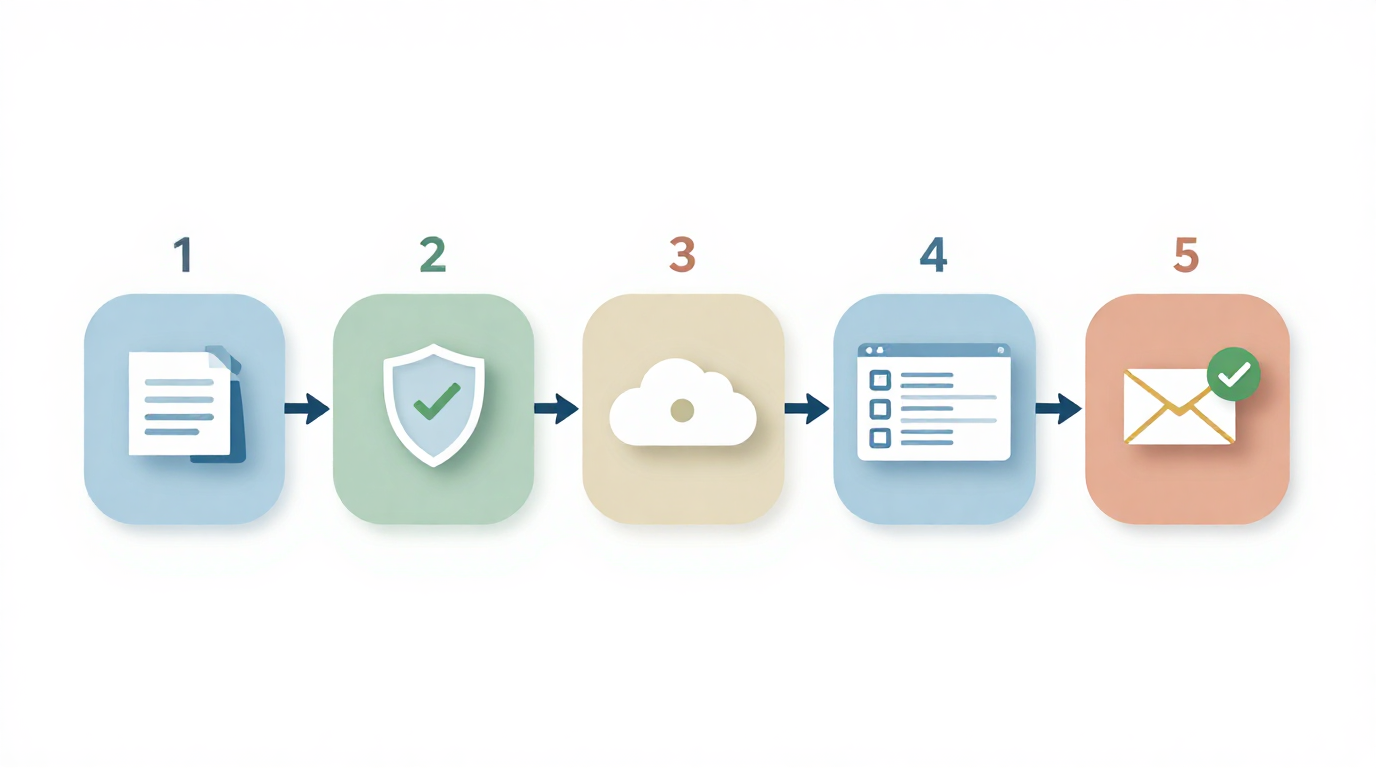
At a high level, the process has five major parts.
1. Create the Microsoft Entra app registration
Your process starts in Microsoft Entra ID under App registrations, where an administrator creates a new single-tenant app registration and records the Application (Client) ID.
That aligns with Microsoft’s Graph configuration guidance for D365, which also requires creating an app registration and capturing the Application Client ID for use in the finance and operations environment.
2. Grant Microsoft Graph permissions
The app registration needs the Microsoft Graph Mail.Send application permission, followed by admin consent. Your process document shows the API permissions step and the “Granted” status in the screenshot on page 2.
Microsoft’s D365 documentation also identifies Mail.Send under Microsoft Graph application permissions as part of the Graph email provider setup.
A security note matters here: Microsoft’s Exchange documentation states that the Mail.Send application permission allows an app to send mail as any user without a signed-in user.
That does not mean every implementation should leave that permission broadly usable across every mailbox. Administrators should evaluate mailbox scoping options such as Exchange application RBAC or application access policies where appropriate. Microsoft documents application access policies as a way to restrict app access to specific Exchange Online mailboxes, though those policies are now described as legacy compared with newer Exchange application RBAC options.
In plain English: give the app what it needs, not the keys to every mailbox in the building.
3. Create the federated credential
This is the heart of the secretless setup.
Your document directs administrators to open the app registration, go to Certificates & secrets > Federated credentials, and add a credential using the issuer and subject identifier from D365 Email parameters. It also specifies the audience value api://AzureADTokenExchange.
Microsoft’s federated identity credential documentation confirms the same core building blocks: issuer, subject, and audience. It also notes that issuer, subject, and audience matching is case-sensitive, meaning the values must match exactly.
This is one of those small details that can consume an unreasonable amount of troubleshooting time. Case sensitivity is how software reminds us it has no sympathy.
4. Configure D365 Finance & Operations
Once the app registration and federated credential are ready, D365 is configured under:
System administration → Setup → Email → Email parameters
Your document instructs users to open the Microsoft Graph settings tab, enable federated credentials, and populate the Application ID from the app registration. It also points to the Configuration tab, where the Graph provider is enabled and selected as the batch email provider.
Microsoft’s D365 documentation confirms that administrators configure Graph from the Email parameters page and that the batch email provider determines which provider sends non-interactive or batch email.
One important operational note: Microsoft says email throttling is not recommended for Microsoft Graph and Exchange providers because they have their own throttling mechanisms, so the per-minute email sending limit should be set to 0 for both.
5. Test and validate delivery
Your process ends with a test email from D365 using Graph as the provider and verifying that the email is delivered without authentication errors. The screenshot on page 5 shows the test email area in Email parameters.
Microsoft’s troubleshooting guidance reinforces the same pattern: use Email history to review sent messages and errors, validate mailbox configuration, and check permission issues when messages fail. The Email history page is specifically called out as the place administrators can review sent emails and errors that prevented delivery.
Common issues to watch for
Most Graph email issues fall into a few predictable categories.
Unauthorized or forbidden errors usually point to missing permissions, missing admin consent, mailbox restrictions, or a mismatch between the app registration and D365 configuration.
Authentication failures often come back to the Application ID, tenant alignment, or federated credential mismatch. With federated credentials, pay special attention to issuer, subject, and audience values. Again: exact match means exact match.
Email not delivered may not be a D365 problem at all. Verify that the mailbox exists, is licensed, can send mail, and is not blocked by Exchange Online transport rules. Your process document calls out the same troubleshooting checks.
Batch email confusion can happen when users test interactive email successfully but batch-generated emails still fail. In D365, batch email behavior is controlled separately through the batch email provider and email processing setup. Microsoft notes that email sent directly from the server without user interaction is sent by the Email distributor batch process.
Why this matters beyond email
The bigger story is not just “configure Graph email.”
The bigger story is that D365 administration is moving toward modern identity, reduced secrets, and tighter security boundaries.
That matters for clients because ERP email is a business process dependency. If invoices, workflow notifications, vendor communications, and customer statements depend on email, then email authentication is part of your operational control model.
Federated credentials make that model stronger by removing a common source of failure: stored secrets that expire, leak, or quietly become someone else’s problem.
Logan POV: the best infrastructure improvements are the ones nobody notices — because nothing breaks.
Final thought
Microsoft Graph email is the right direction for D365 Finance & Operations customers using Microsoft 365. It aligns better with modern authentication, avoids the limitations of SMTP, and supports business-critical email processes across finance and operations.
Using federated credentials makes the design even cleaner. Instead of storing a client secret in D365, the environment authenticates through a trust relationship with Microsoft Entra ID. That reduces credential maintenance, improves security posture, and removes one more “we should probably rotate that” item from the admin calendar.
The setup is not difficult, but it does require precision:
- Create the app registration
- Grant Mail.Send and admin consent
- Configure the federated credential correctly
- Populate D365 Microsoft Graph settings
- Enable Graph as the provider
- Test delivery
- Monitor Email history
Do that well, and email becomes what it should be: quiet, reliable infrastructure.
Which is exactly how email should behave: boring, dependable, and absolutely not the reason your workflow approvals are stuck.


