








Reviews and corrects ledger-to-subledger alignment in D365 by fixing posting configurations, inventory profiles, reconciliation logic, GL mapping, and critical reporting procedures.
Better Quality, Less Downtime: Why Your Small Manufacturing Shop Needs Inline Sampling in D365
Posted on: May 20, 2026 | By: Ashley Xue | Microsoft Dynamics AX/365
One of the biggest headaches for small manufacturers is the “waiting game.” You finish a production run, report it as finished, and then—and only then—does the Quality department step in to pull samples. If there’s a deviation, you’ve already produced an entire batch of scrap.
Microsoft has recently addressed this bottleneck with Sample Management features in Dynamics 365 Supply Chain Management. Specifically, Inline Sampling is changing the game by allowing quality checks to happen ad hoc during the work-in-progress (WIP) phase, rather than just at the finish line.
Why Move to Inline Sampling?
In manufacturing, efficiency is everything. Inline sampling offers three primary “wins”:
- Early Detection: Catching a calibration error or material defect mid-process prevents you from wasting expensive raw materials on a bad batch.
- Reduced Lead Times: By starting the quality process while production is still running, you can often release the finished goods to the warehouse the moment the last item is packed.
- Better Data Accuracy: Capturing data at specific production milestones gives you a clearer picture of where issues occur in your routing, not just that they happened “somewhere” in the shop.
How to Configure a Basic Inline Sampling Setup
If you’re ready to stop waiting and start testing, here is a simplified roadmap to get a basic inline sampling process running in D365 SCM.
- Enable the Feature
First, ensure that both Advanced Quality Management and Sample Management are enabled in your Feature Management workspace. Without this, the specific triggers for inline sampling won’t be visible.
- Configure Inline sampling
- Sample labels (optional) – flexible design interface for tracking of the physical sample.
- Navigate to Inventory management > Setup > Sample management > Sample label layouts.
- Create a sample-specific label for any ZPL-compatible label printer.
- Sample lifecycle states – these manage the processing stages.
- Navigate to Inventory management > Setup > Sample management > Sample lifecycle states.
- Create one for each of the 3 options: Quality order created, Quality order validated, and Sample scrapped. “Pending”, “Tested”, and “Scrapped” (or similar) are sufficient names for most simple business cases.
- Sample types – marries the inspection method (Inline sampling) to the Label layout and Sample lifecycle states.
- Navigate to Inventory management > Setup > Sample management > Sample types.
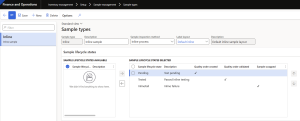
- Sample procedure types (optional) – these define what the procedure controls, such as storage or disposal.
- Navigate to Inventory management > Setup > Sample management > Sample procedure types.
- TBD**
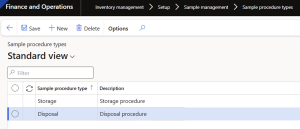
- Sample procedures (optional) – provide instructions specific to the produce being inspected.
- Navigate to Inventory management > Setup > Sample management > Sample procedures.
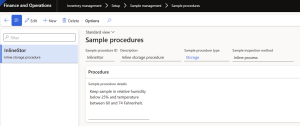
- Sample associations – create the relationship between the Item or Item group, Sample type, Item sampling, and Sample procedures.
- Navigate to Inventory management > Setup > Sample management > Sample associations.
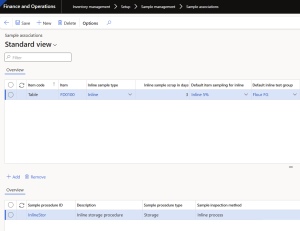
- Initiate inline sample management
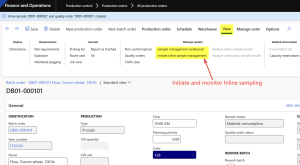
When you’re ready to take inline samples from a particular Production order, navigate to the Production order and update to a “Started” status to allow the feature to be enabled on the order.
- Click “Initiate inline sample management” to turn on Sample management.
- Adjust the selections for the product and click “OK”.
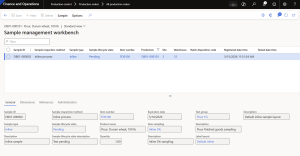
- Click “Sample management workbench” to see the status of the samples in relation to their Quality orders.
- The Sample Lifecycle State will update as the Quality orders are processed.
Final Thoughts
Inline sampling isn’t just for the “big guys” with massive labs. For the average manufacturer, it’s about agility. By integrating quality into your production flow rather than treating it as an afterthought, you reduce waste and get products out the door faster.
Next Steps:
If you want to learn more about Quality management in Microsoft Dynamics 365 Supply Chain Management, contact us here to learn how we can help you grow your business. You can also email us at info@loganconsulting.com or call (312) 345-8817.


