


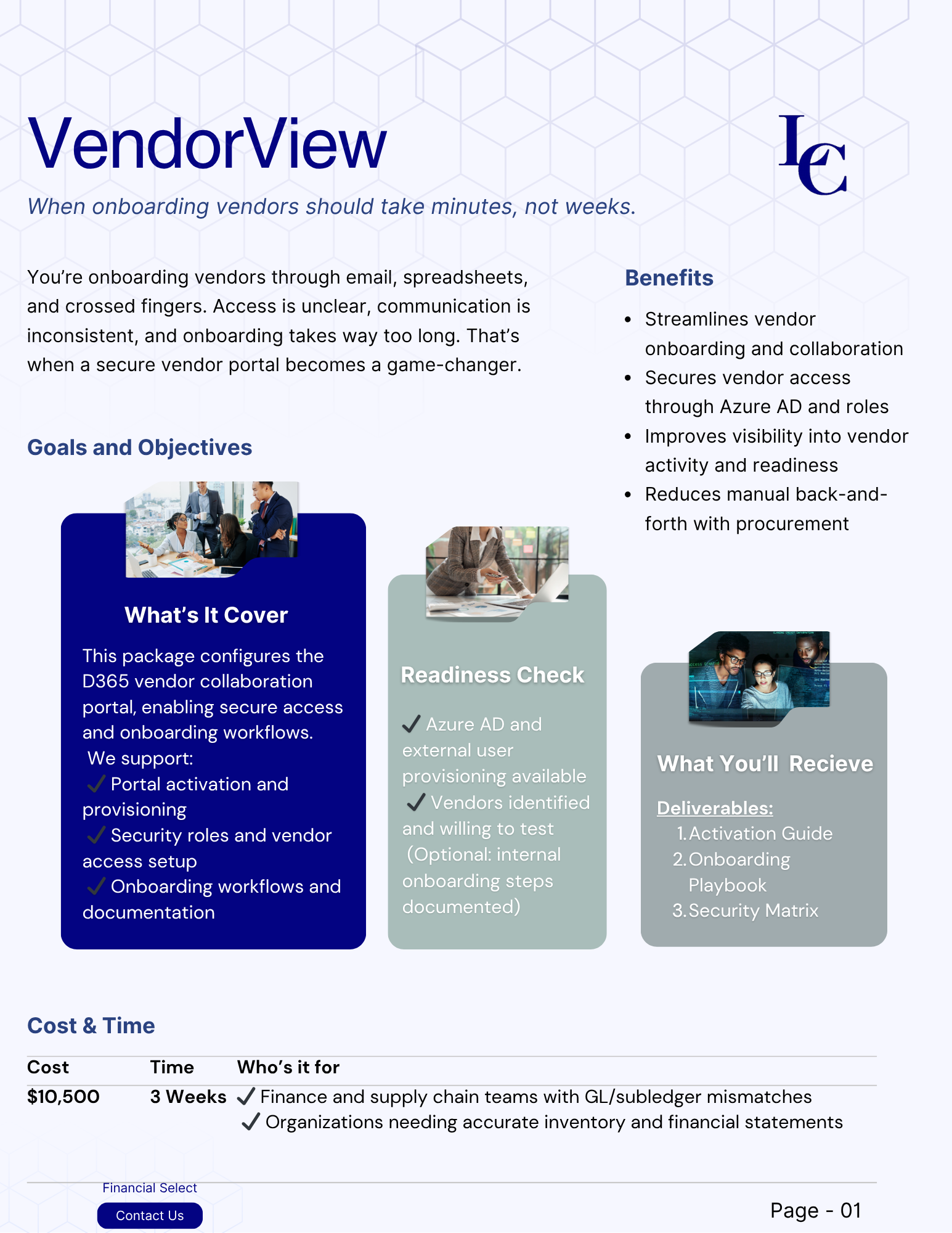


Reviews and corrects ledger-to-subledger alignment in D365 by fixing posting configurations, inventory profiles, reconciliation logic, GL mapping, and critical reporting procedures.
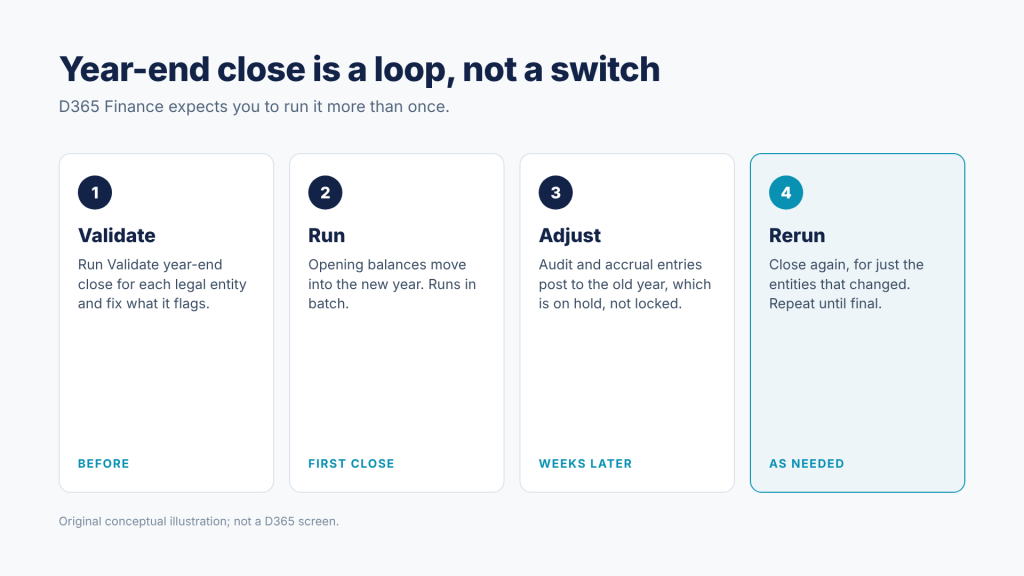
Dynamics 365 Finance expects you to close the year more than once. Set up for the second run before others start the first. A checklist for December.
Posted on: November 19, 2026 | By: Michael Angel | Microsoft Dynamics AX/365
Picture the second week of January. The year-end close ran on schedule, opening balances landed in the new year, and the controller has started on January’s books. Then the auditors send an adjusting entry for last year: an accrual that was missed, $36,500 to inventory reserves.
Someone tries to post it and hits a closed period. Someone else remembers that a checkbox was ticked during the close to “lock it down for good.” Now the question is not how to post the adjustment. It is whether last year can still be changed at all.
This is an illustrative scene with made-up figures, not a Logan client case.
None of this is a system failure. D365 Finance did exactly what its settings told it to do. The useful work happens before the first run: deciding how the close should behave the second, third and fourth time.
What the close really does
The year-end close moves balances into the new fiscal year. It always creates an opening transaction: balance sheet accounts carry forward, and profit and loss balances land in retained earnings. It can also create an optional closing transaction that brings profit and loss accounts to zero in the year being closed.
Which accounts carry forward and which roll into retained earnings is decided by the Main account type on each main account. If you are retiring a balance sheet account, the Opening account field on the main account moves its balance to a new one during the close.
Microsoft’s own documentation says most organizations run the close several times: the first run moves the balances, and later runs pick up adjusting entries. Plan for that from the start.
Four decisions to make before the first run
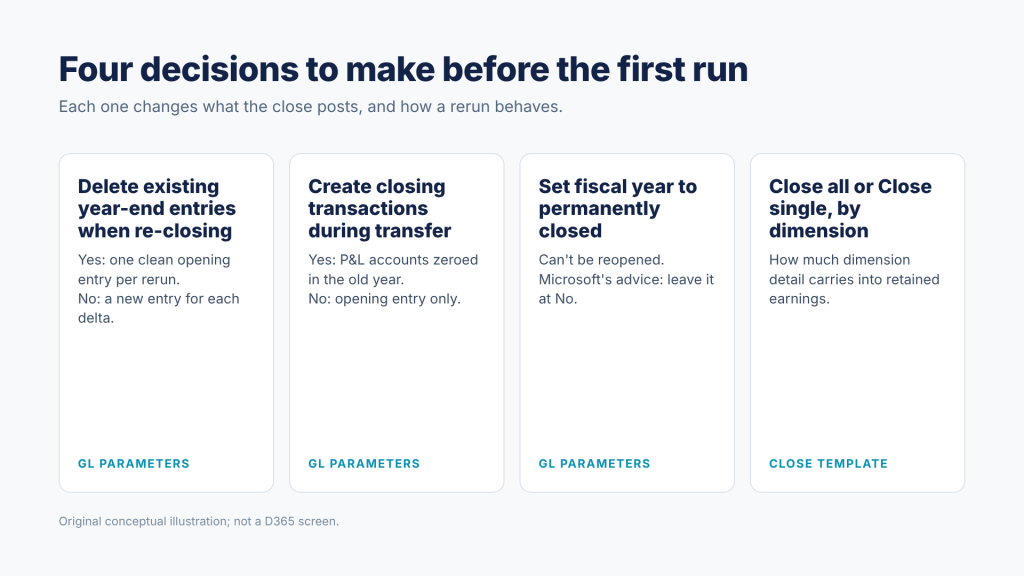
Delete existing year-end entries when re-closing the year. Set to Yes, each rerun deletes the previous opening (and closing) entries and creates fresh ones from current balances. Set to No, the earlier entries stay and a new entry is added for the adjustments posted since. Neither is wrong. Pick the one your auditors would rather read.
Create closing transactions during transfer. Set to Yes, profit and loss accounts are zeroed in the old year as well as opened in the new one. Set to No, only the opening transaction is created and the old year’s balances stay where they are.
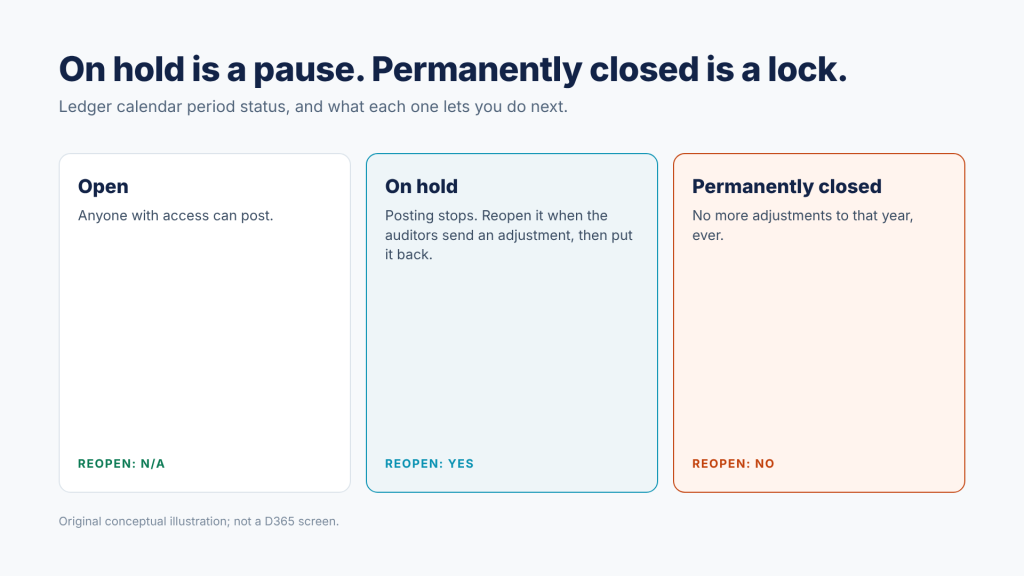
Set fiscal year status to permanently closed. A permanently closed period cannot be reopened, so no more adjustments can post to that year. Microsoft’s guidance is to leave this at No. That is the checkbox in the January scene.
Close all or Close single, for each financial dimension. In the year-end close template, Close all keeps every dimension combination when profit and loss moves to retained earnings. Close single summarizes to one value, which can be blank. Your detailed profit and loss history is not affected either way; only the retained earnings opening balance changes. Close single is also faster.
The one setting to get right
Put last year’s periods on hold, not permanently closed. On hold stops posting today and still lets you reopen the period when the auditors call.
Validate before you run
Since version 10.0.41, the Year-end close page has a Validate year-end close action. Year-end close validation checks a legal entity and year for the problems that usually stop a close halfway through:
Highly variable dimensions. More than one million unique ledger dimension combinations will slow the close. The fix is usually Close single on those dimensions.
Out-of-balance entries. Ledger transactions settled against a transaction in a different fiscal year are excluded from the opening balance, which can leave debits and credits unequal. A consistency check with Fix error resolves most of these.
Overflow amounts. Transactions of 16 or more digits, including decimals, can also break the balance.
Run it in November, not on the night of the close. Every issue it finds is cheaper to fix before the deadline.
Make the run itself faster
If your close takes hours, look at Optimize year-end close. It moves the heavy processing out of the AOS to a Microsoft microservice, which reduces run time and the load on your SQL database while the close runs. You install the add-in in Lifecycle Services and turn on the feature in Feature management. Microsoft’s implementation guidance notes it is included in your existing Finance licenses.
Two cleanup steps help either way. Delete financial dimension sets nobody uses, because each set’s balances are rebuilt during the close. And look again at any dimension set to Close all that does not need to reach retained earnings in detail.
Rerun or reverse?
They sound alike and do different things. Reverse year-end close deletes the closing and opening entries as if the close never ran, and does not run it again. Rerunning the close follows the delete-existing-entries parameter above. Use reverse when the setup was wrong. Use a rerun when the setup was right and new entries arrived. The year-end activities FAQ covers both in detail.
The checklist
| Step | Where it lives | Why it matters |
|---|---|---|
| Main account types and opening accounts reviewed | Main accounts | Decides what carries forward and what closes to retained earnings |
| Rerun behavior chosen and documented | General ledger parameters, Fiscal year close | Controls whether reruns replace or add entries |
| Permanently closed set to No | Same page | Keeps the year open to audit adjustments |
| Close all vs Close single set per dimension | Year-end close template setup | Retained earnings detail and run time |
| Validation run and issues cleared | Year-end close, Validate year-end close | Catches out-of-balance and performance problems early |
| Budget-controlled purchase orders closed or carried forward | Purchase order year-end process | Required before the year can close when budget control is on |
| Last year’s periods On hold | Ledger calendar | Stops stray postings without locking the year |
| Close tasks tracked with owners and due dates | Financial period close workspace | Task history exports to Excel for the audit file |
Five tests to run in a sandbox
Settings describe intent. A test run shows what happens. With a recent copy of production in a non-production environment, try the following:
1. Run Validate year-end close for each legal entity. Did anything come back that you did not expect?
2. Run the close and time it. Is the run time acceptable on the night, or do you need Optimize year-end close?
3. Post an adjustment to the closed year and rerun. Do the entries look the way your auditors expect?
4. Compare retained earnings by dimension against your reporting needs. Is Close single losing detail someone uses?
5. Reverse the close and run it again. Do you know how long a do-over takes if you need one?
Each test takes less than a day. Every surprise is one you would much rather find in November than in January.
Where to start
If you do one thing this week, open General ledger parameters in each legal entity and write down the three Fiscal year close settings. Then ask whether anyone on the team could explain why each one is set the way it is. The answer tells you whether your close is a plan or a habit.
If you would like a second set of eyes on your year-end close in Dynamics 365 Finance, talk to Logan Consulting.
This article is general information, not accounting, audit or tax advice. Feature availability and behavior depend on your Dynamics 365 Finance version and configuration, so confirm each point in your own environment. Scenarios and figures are illustrative.