





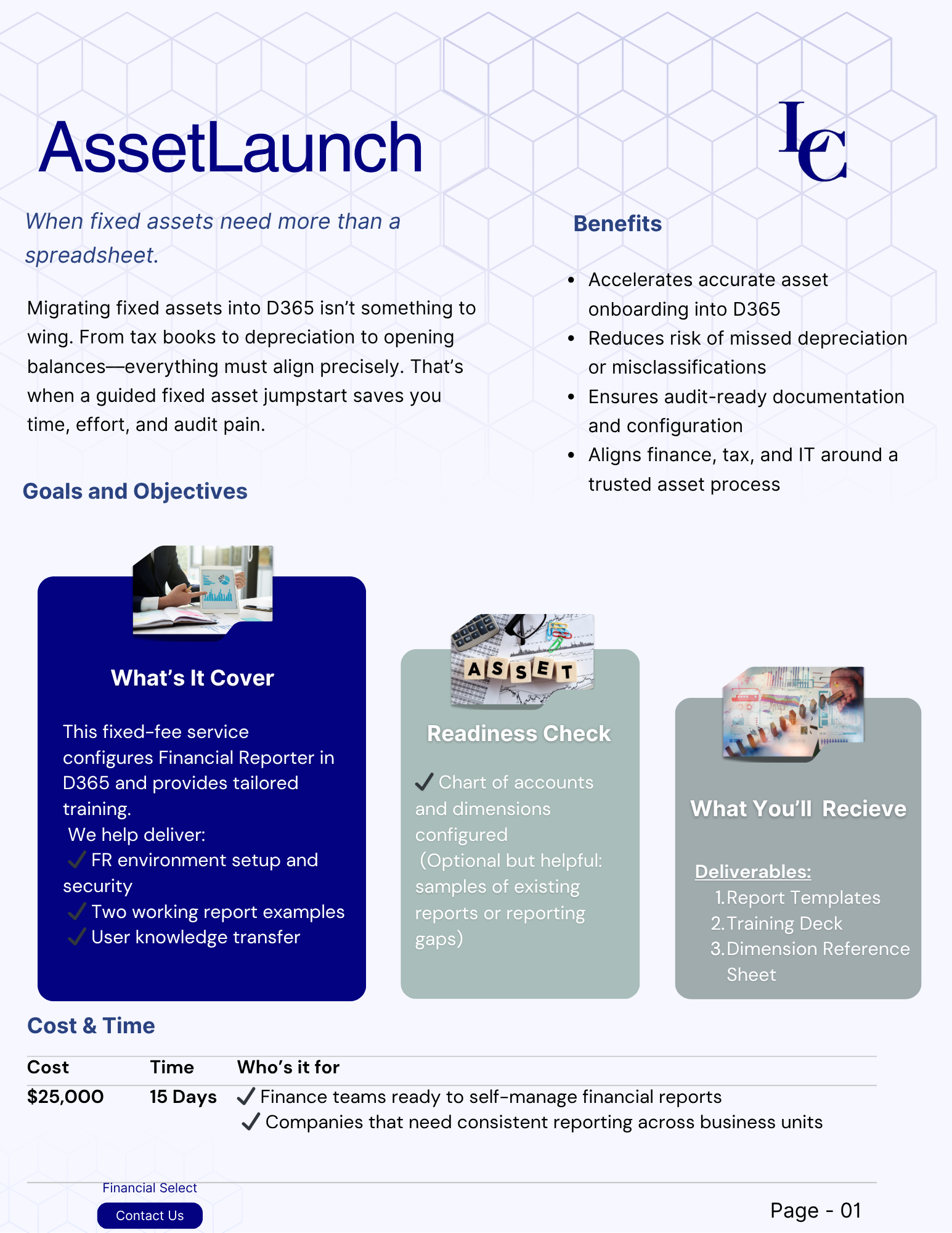
Reviews and corrects ledger-to-subledger alignment in D365 by fixing posting configurations, inventory profiles, reconciliation logic, GL mapping, and critical reporting procedures.
Your Vendor “Changed Banks” by Email. Make D365 Prove It Before You Pay.
Posted on: November 16, 2026 | By: Cormac Kelly | Microsoft Dynamics AX/365, Microsoft Dynamics AX/365|Microsoft Dynamics Manufacturing
Dynamics 365 Finance can hold a bank change until someone approves it. It cannot tell you whether anyone checked with the vendor. A checklist for closing that gap before the next payment run.
By Logan Consulting | November 19, 2026 | 5-minute read
Picture a Wednesday afternoon in accounts payable. An email arrives from a familiar contact at a long-standing supplier. The tone is right, the signature is right, and the message is short: the company has moved to a new bank, the new details are attached, and please use them for the $48,200 invoice due Friday.
The clerk opens the vendor in Dynamics 365, updates the bank account, and moves on to the next item in the queue. On Friday the payment run picks up the invoice. Three weeks later the real supplier calls to ask where its money is.
This is an illustrative scene with made-up figures, not a Logan client case.
Nothing in that story required a system failure. D365 did what it was told. The useful question for a controller is narrower: at which step could the system have stopped the change, and what would it have needed from the people around it?

What D365 can hold back
Dynamics 365 Finance includes a vendor bank account workflow. Once the feature is turned on and configured in Accounts payable parameters, three things change:
New bank accounts wait. With approval on create enabled, a new vendor bank account is not available for use until an approver approves it.
Edits to protected fields are held as proposals. You choose which fields require approval. When someone edits one, the new value is stored as a proposed change, and Microsoft’s documentation is explicit that protected fields are not updated until an approver approves them.
Every record shows where it stands. A Review status on the bank account reads Draft, Approved, Approved with changes not submitted, or Approved with pending changes. The approver can open the proposed changes and see the current value next to the new one.
That is a real control. In the Wednesday scene, the clerk’s edit would have sat as a proposal, and the old account would have stayed in place until a second person acted.
Approved is not the same as verified
Here is the limit. The workflow records who submitted the change and who approved it. It has no way of knowing whether either of them contacted the supplier. If the approver’s only evidence is the same email the clerk received, two people have now trusted one forged message.
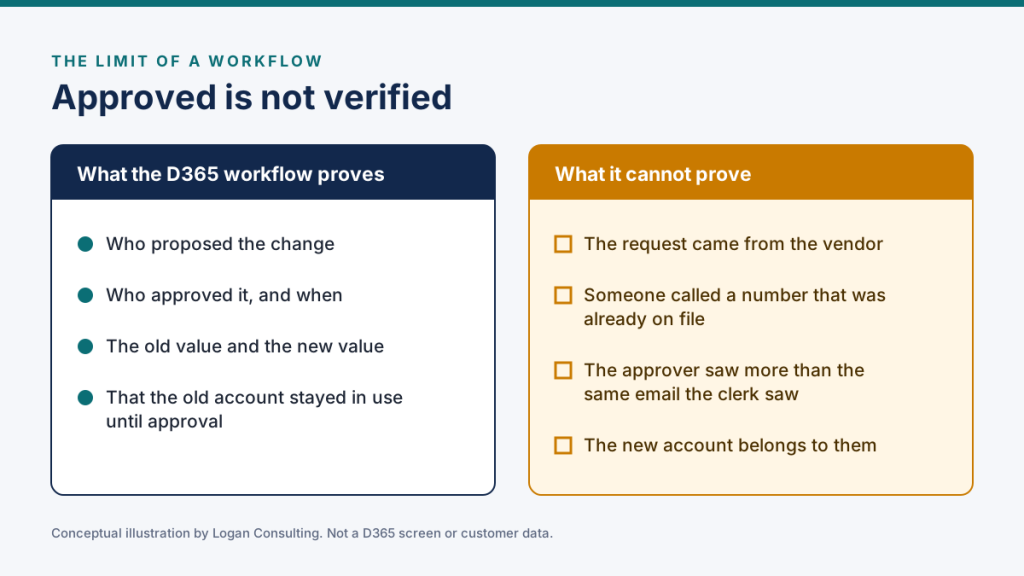
So the verification step has to be designed into the work that surrounds the workflow:
Call back on a number you already had. Use the phone number on the vendor record before the request arrived. Never use contact details from the request itself.
Write down the evidence. Who called, who answered, which number, and when. Attach the note to the vendor bank account record so the approver sees it alongside the proposed change.
Make the approver’s job specific. The approver is confirming that the callback evidence exists and matches the proposal. The approver is not re-reading the email.
The test of a good control
Six months from now, could someone who was not in the room see who verified this change, how, and who approved it, without asking anyone?
Three doors into the same field
A workflow on the bank account page protects one way in. There are at least two others worth checking.

The import. Vendor bank accounts can also be updated through a data entity. The same parameters page has a separate setting for that path, with three choices: allow changes without approval, reject changes, or create change proposals. If it is set to allow, a spreadsheet import can change protected fields with no approval at all. Note too that “create change proposals” does not start the workflow automatically. Someone still has to submit the proposals.
The rest of the vendor record. The bank account is one of several fields that steer money. The separate vendor workflow lets you require approval for changes to fields on the vendor itself, and it has its own data entity setting.
The settings. Whoever can edit Accounts payable parameters can switch the approvals off. Microsoft suggests database logging for sensitive tables and fields, and its own security guidance uses the vendor bank account number as an example of a field worth tracking. Log the specific fields you care about, and decide who reviews the log.
The checklist
| Control | Where it lives | Evidence to keep |
|---|---|---|
| Approval required for new vendor bank accounts | Accounts payable parameters, Vendor bank account approval | Parameter setting; workflow history |
| Approval required for edits to the fields that route money | Same page; the list of protected fields | The field list, reviewed at least yearly |
| Import path cannot bypass approval | Data entity behavior (update): reject, or create change proposals | Result of a test import |
| Callback to a number already on file | Your procedure, outside D365 | Call note attached to the bank account record |
| Maintainer, approver and payer are different people | Security roles and segregation of duties rules | Compliance check on user-role assignments |
| Changes to bank fields and approval settings are logged | Database log on selected fields | Named reviewer and review schedule |
| Pending changes are visible before a payment run | Review status on vendor bank accounts | Pre-run check of records not in Approved status |
Five tests to run in a sandbox
Settings describe intent. Tests show what happens. Before relying on any of this, try the following in a non-production environment with the roles your team really has:
1. As an AP clerk, edit a protected field on an approved bank account. Does the old value stay in place?
2. Import the same change through the data entity. Is it rejected, proposed, or applied?
3. Try to approve a change you submitted yourself. Does the workflow stop you?
4. Create a payment for a vendor with a change pending. Which account does the payment use?
5. Switch an approval parameter off and on again. Did anything record that it happened, and would anyone have noticed?
Each test takes minutes. Any surprising answer is a finding you would much rather get from a sandbox than from a supplier.
Where to start
If you do one thing this week, pull the list of vendor bank accounts changed in the last 90 days and ask, for each one, where the verification evidence is. The answer tells you whether your control is a workflow, a habit, or a hope.
If you would like a second set of eyes on your vendor-to-payment controls in Dynamics 365, talk to Logan Consulting.
This article is general information, not legal, audit or fraud-prevention advice. Feature availability and behavior depend on your Dynamics 365 Finance version and configuration, so confirm each point in your own environment. Scenarios and figures are illustrative.