




Reviews and corrects ledger-to-subledger alignment in D365 by fixing posting configurations, inventory profiles, reconciliation logic, GL mapping, and critical reporting procedures.
Your D365 Bank Reconciliation Can Balance and Still Be Wrong
Posted on: October 13, 2026 | By: Heather Zhu | Microsoft Dynamics AX/365, Microsoft Dynamics AX/365|Microsoft Dynamics Manufacturing
The Cash-Close Series
Before chasing a higher automatic-match rate, test whether Dynamics 365 is matching the right transaction.

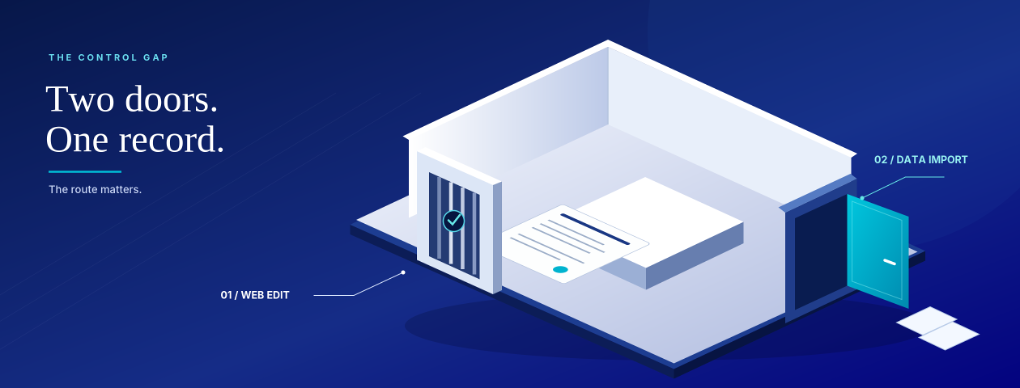
Conceptual illustration from Logan’s finance-agent field guide. Not a product screen or customer case.
Consider an illustrative Friday close. A controller sees a $4,800 withdrawal on the bank statement and two $4,800 payments in Dynamics 365 Finance. One has cleared. One has not. An amount-based match picks a payment, the totals look reasonable, and the team moves on.
The problem is not arithmetic. If the wrong payment was selected, the outstanding-payment list now tells the wrong story. Replacing one $4,800 item with another does not change a total. It changes what that total means.
Before moving another reconciliation into Excel or buying more automation, test that distinction. The useful question is not just how many lines the system matched. It is whether the evidence supports each match.
The Control Question
Which transaction cleared, not simply which amount matched?
The first match is not proof
Microsoft documents a consequential default: a matching rule selects the first Finance bank transaction satisfying its criteria. When several candidates qualify, that is not necessarily the transaction the controller intended. Native D365 includes a parameter that requires manual matching for the documented multiple-document scenario.
That makes this a configuration-and-evidence problem, not proof of a software defect. Rules can faithfully execute an incomplete definition of a match. More processing speed will not supply the missing identity.
| Record | Amount | What the evidence says |
|---|---|---|
| Bank statement | ($4,800) | Reference ACH-1042 cleared |
| Finance payment A | ($4,800) | Reference ACH-1041; not cleared |
| Finance payment B | ($4,800) | Reference ACH-1042; cleared |
Illustrative example. Both payments are otherwise eligible. Selecting A instead of B leaves the same amount outstanding, but the wrong payment. No tenant test is implied.
How to solve it in D365
1
Start with the imported evidence.
In a sandbox, use a bank account already configured for advanced bank reconciliation. Verify that the statement format matches the bank file, then inspect which payment references survive import. Electronic reporting configuration interprets that file; a bank-provided reference is not useful if it is absent or misread in Finance.
2
Make ambiguity visible.
Open Cash and bank management > Setup > Cash and bank management parameters > Bank reconciliation. Enable Require manual matching when advanced bank reconciliation matching rules find multiple documents that match on amount. Review the existing rule under Setup > Advanced bank reconciliation setup > Reconciliation matching rules.
3
Improve the rule, not the headline metric.
Use dependable identifying evidence where the available matching fields support it. Check transaction-code mapping and the permitted date window. Parameter-level validation takes precedence over rule settings, so loosening one rule cannot bypass those controls. Do not widen tolerances merely to empty the queue.
The Tradeoff
An exception that reaches a reviewer can be safer than an automatic match that should never have happened.
Prove the match before scaling it
Run a controlled pair of tests through the Bank reconciliation worksheet using Run matching rules. Keep amounts, signs, account, currency and permitted dates consistent so you are testing candidate identity rather than an unrelated validation failure.
| Sandbox case | Expected evidence to inspect |
|---|---|
| One valid candidate | The intended Finance transaction is matched. Retain its reference and the statement-line identity. |
| Two qualifying candidates | With the ambiguity parameter enabled, the duplicate-amount case requires manual matching rather than a first-candidate choice. Inspect both candidates before selecting one. |
Proposed tests based on documented behavior. Verify the outcome in your own sandbox.
These are proposed acceptance tests, not results from a Logan client or a tested tenant. Preserve the imported file, rule criteria, parameter setting, candidate transactions and reviewer decision. A pass means the correct relationship is established, not merely that the remaining amounts changed.
The safeguard is deliberately limited. It addresses multiple qualifying documents. A weak rule can still find just one wrong candidate. Test missing references as well, and require independent supporting evidence when the system cannot distinguish the transaction.
Keep the boundary visible
Keep the scope straight. This article concerns matching a bank statement to Finance bank transactions, not every reconciliation needed to close the books. Modern bank reconciliation adds functionality and changes parts of the workflow. Confirm the enabled features, application build and access permissions before applying instructions. No AI agent or partner add-on is required for this native matching diagnostic.
Inspect and correct questionable relationships before finalizing the reconciliation. Microsoft documents an Unmatch action for incorrect matches in the applicable worksheet flow; do not assume that a completed reconciliation can be reopened the same way. Establish the recovery procedure for your environment before production changes.
Logan’s published principle is simple: “Business processes drive system design. Not the other way around.” Applied here, the aim should be fewer incorrect matches and less investigation time, with clear ownership of unresolved items. A lower automatic-match rate can be a better result when it stops unsupported decisions.
Remember One Thing
A matching amount is a clue. A matching transaction is the goal.
Sources checked October 12, 2026.
- Microsoft Learn: Matching rules
- Microsoft Learn: Reconciliation setup
- Microsoft Learn: Reconciliation process
- Microsoft Learn: Statement import
- Logan Consulting: Our Dynamics approach
- Talk with Logan Consulting