








Reviews and corrects ledger-to-subledger alignment in D365 by fixing posting configurations, inventory profiles, reconciliation logic, GL mapping, and critical reporting procedures.
Using Active Batch Periods in Microsoft Dynamics 365 Finance & Operations to Improve System Performance
Posted on: May 19, 2026 | By: Ashley Xue | Microsoft Dynamics AX/365
Active Batch Periods in Microsoft Dynamics 365 Finance and Operations (D365 F&O) are a powerful, often overlooked tool for fine-tuning system performance. By defining specific windows for batch job execution, you can ensure high-priority processes have the resources they need during business hours while deferring heavy data-crunching tasks to off-peak times.
Why Use Active Batch Periods?
Many organizations face a common paradox: they need batch jobs to run frequently to keep data updated, but running those same jobs during the day can slow the system significantly for end-users. Active Batch Periods solve this by allowing your business to:
- Prevent Peak-Hour Slowdowns: Restrict resource-heavy jobs (like complex consolidations or large data cleanups) to run only between 6:00 PM and 6:00 AM.
- Ensure Business Hour Compliance: Configure “Business Hour” periods for jobs that must run while people are in the office, such as sending real-time payment advice or customer notifications.
- Optimize Recurrence: You can set a job to run every hour, but only within the specified active period. This keeps the schedule clean without requiring manual starts and stops.
How to Configure Active Batch Periods
Setting this up is a two-part process: defining the period and then assigning it to your job.
Step 1: Define the Active Period
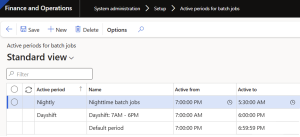
- Navigate to System administration > Setup > Active periods for batch jobs.
- Click New to create a new period.
- Enter a descriptive name (e.g., “After Hours” or “Morning Shift”).
- Specify the Start time and End time for the window. Use the built-in clock icon for easy time selection.
- Click Save.
Step 2: Assign the Period to a Batch Job
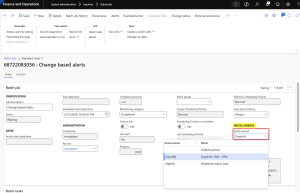
- Go to System administration > Inquiries > Batch jobs.
- Select the job you want to restrict and click Edit.
- In the Active period field, select the appropriate period from the dropdown menu.
- Click Save. The job will now only be executed if its scheduled recurrence falls within that active window.
For more advanced system health tips, you might explore the Microsoft Learn documentation on batch processing or contact our team for a performance audit.
Next Steps:
If you want to learn more about Active Batch Periods in Microsoft Dynamics 365 Supply Chain Management, contact us here to learn how we can help you grow your business. You can also email us at info@loganconsulting.com or call (312) 345-8817.


