





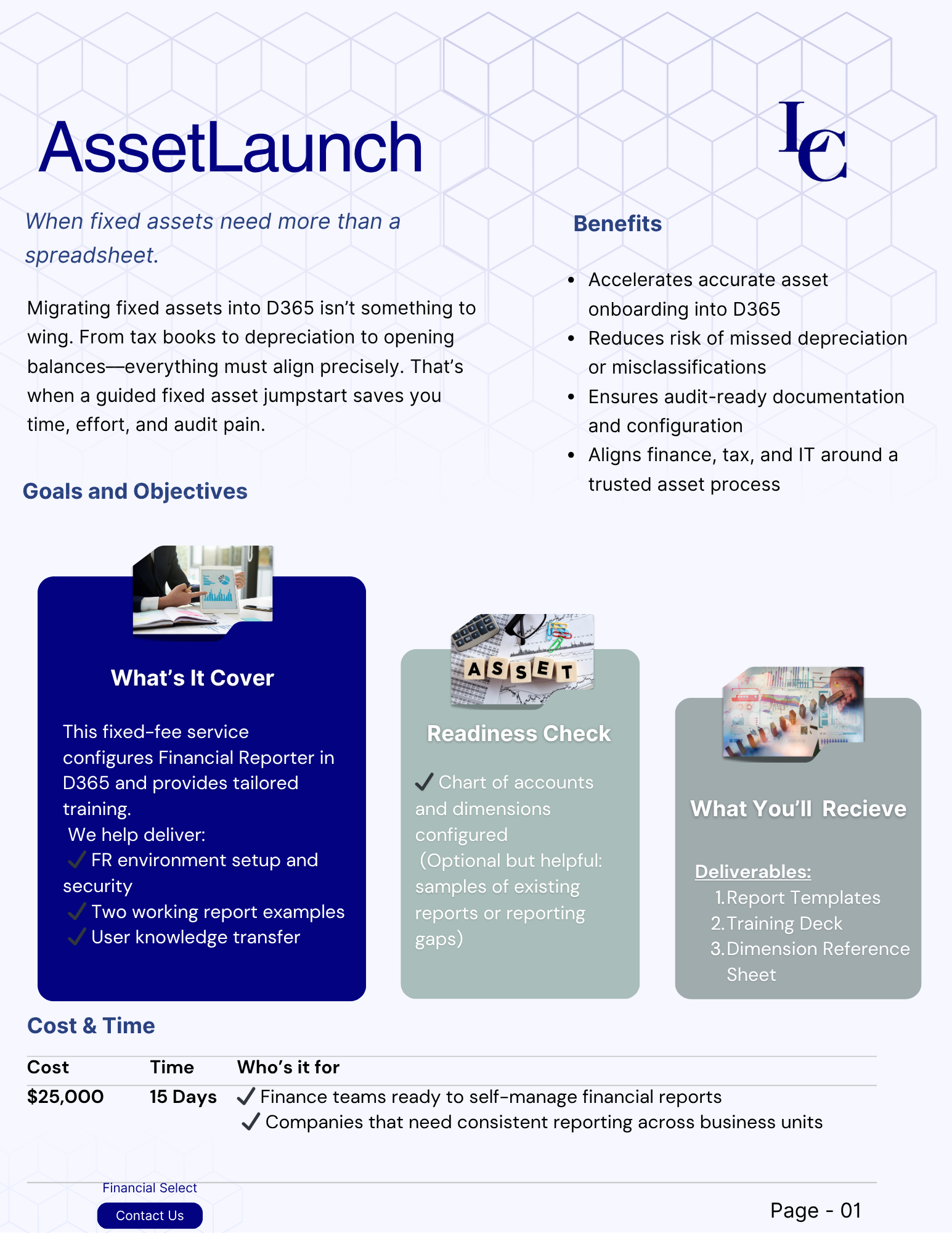
Reviews and corrects ledger-to-subledger alignment in D365 by fixing posting configurations, inventory profiles, reconciliation logic, GL mapping, and critical reporting procedures.
Business Central and SharePoint: Why Your Integration May Have Broken
Posted on: July 30, 2026 | By: Jackson Morris | Microsoft Dynamics Business Central
If your organization connects Business Central and SharePoint to pull documents, sync attachments, or expose files through a custom AL integration or Power Automate flow, there’s a real chance that connection is already broken. It may have failed quietly enough that no one’s connected the dots yet.
Microsoft retired Azure ACS (Access Control Service) app-only authentication for SharePoint Online on April 2, 2026. Any integration still authenticating through the old ACS model stopped working on that date, full stop, even if the client secret behind it was still technically valid. There was no grace period, and there isn’t one now.
We recently worked through this exact migration for a client whose integration had already hit this wall. If document uploads, attachment syncs, or file lookups between BC and SharePoint have started failing with vague authentication errors, this is very likely why. Here’s what actually changed, and what it takes to move off the old method.
What “Old Method” Actually Means
If your BC-to-SharePoint connection was set up more than a couple of years ago, there’s a good chance it was registered the old way, through SharePoint’s own appregnew.aspx / appinv.aspx pages, using an AllowAppOnlyPolicy app permission request. That flow issued app-only access through Azure ACS, a separate, older authentication layer that predates modern Entra ID app registrations.
It worked fine for a long time. It’s also exactly what Microsoft has now shut off.
The Replacement: Entra ID App Registration
The fix is to move authentication over to Microsoft Entra ID, using an app registration with application-level permissions against Microsoft Graph and/or the SharePoint API instead of ACS. Practically, that means:
- Registering (or reusing) an app in Entra ID
- Granting Application permissions like Sites.Read.All and Sites.ReadWrite.All on Microsoft Graph and SharePoint
- Getting admin consent granted at the tenant level
- Authenticating with a certificate rather than a client secret
That last point matters more than it might seem.
Why a Certificate, Not Just a Secret
A client secret will get you a valid Entra token, but SharePoint’s REST API checks a specific claim on that token (appidacr) to decide whether to trust it. Tokens issued using a client secret carry a different claim value than tokens issued using certificate-based authentication, and SharePoint Online’s app-only model requires the certificate-based version. Try to hit SharePoint REST with a secret-based token and you’ll get a stubborn, unhelpful-looking error: Unsupported app only token.
The fix is a self-signed certificate, which, despite the name, is the Microsoft-recommended standard here, not a shortcut. There’s no public trust chain involved; Entra just needs to verify a signature against the public key you upload. What actually matters is how the private key is handled afterward. It should live in a protected store, ideally Azure Key Vault, never in source control or a shared folder, and it should have a sensible expiration you’re actually tracking.
The Piece Nobody Mentions: BC Can’t Sign Its Own Tokens
Here’s the part that trips people up. Certificate-based client credential flows require signing a JWT client assertion with the private key, and Business Central Online (SaaS) doesn’t have access to the cryptographic libraries needed to do that signing natively in AL code. This isn’t a configuration gap. It’s a platform limitation.
The practical workaround is to move the signing step outside of BC entirely:
BC (AL code) calls an Azure Function, which signs the JWT and requests the token, which is then used against SharePoint REST/Graph.
The Azure Function holds the certificate (pulled from Key Vault at runtime), builds and signs the client assertion, exchanges it for a bearer token at Entra’s token endpoint, and hands that token back. BC’s AL code just calls the function over HTTP, gets a token, and uses it like any other bearer token for the actual SharePoint call.
If Power Automate is part of the picture instead of (or alongside) AL code, the same pattern applies. The flow calls the function to get a token, then uses that token in an HTTP action against SharePoint.
A Practical Migration Checklist
For anyone starting this migration, the sequence looks like this:
- Confirm exposure. Identify every integration still using the old ACS app-only model. If it hasn’t been migrated yet, treat it as already broken rather than at-risk.
- Register the app in Entra ID (or confirm the existing registration) with the right Application permissions on Graph/SharePoint.
- Scope permissions deliberately. Sites.Read.All / Sites.ReadWrite.All grant tenant-wide access to every site collection. For most single-integration scenarios, Sites.Selected, scoped to just the specific site(s) the integration needs, is the tighter, more audit-friendly choice.
- Generate a certificate, upload the public key to the app registration, and store the private key in Key Vault.
- Build the token-signing layer. An Azure Function is the cleanest fit for BC SaaS. Test it independently; Postman is a good way to validate the token exchange in isolation before wiring it into a live flow.
- Update the integration (AL code or Power Automate) to call the function for a token, then use that token for the actual document read/write calls.
- Retest end-to-end before rolling the fix back into production. A broken integration is already costing time, but a rushed fix that fails the same way is worse.
The Takeaway
This isn’t a case of Microsoft removing a feature outright. SharePoint-to-BC document integration is still fully supported. What’s disappearing is one specific, older authentication path underneath it. The fix is a one-time lift: move to Entra ID app registration, switch to certificate-based auth, and add a small signing layer to cover what BC can’t do natively. Once that’s in place, the integration is actually on a more secure footing than it was before.
Next Steps
If your organization has a Business Central integration touching SharePoint, whether through custom AL development, Power Automate, or a legacy ISV connector, it’s worth checking now whether it’s still running on the old ACS model, especially if anyone has reported document uploads or attachment syncs quietly failing. Logan Consulting can help diagnose the issue and manage the migration to a working, more secure setup.
For more information, contact Logan Consulting at info@loganconsulting.com or call (312) 345-8800.
 Scaling EDI as You Grow with Dynamics 365 Business Central
 NetSuite SuiteConnect Chicago 2026: Connect, Learn, and Lead With ERP Innovation
 Highlights from NetSuite Lunch and Learn and Happy Hour in New York: Strengthening Partnerships and Delivering Value
 Forward Deployed Consulting in the Era of NetSuite Next