Introduction to the Vendor collaboration mobile workspace in Dynamics 365
Posted on: February 16, 2022 | By: Guy Logan | Microsoft Dynamics AX/365, Microsoft Dynamics Manufacturing
If you are ever away from your computer and you would like to stay updated about purchase orders, running back to your desk to check on it would be such a hassle. That is why you need to have the Vendor Collaboration Mobile Workspace on your phone. Microsoft developed this mobile workspace that is intended to be used with the Finance and Operations (same as Supply Chain Management) mobile app as a convenient supplement for the web interface.
Read this blog for an introduction to the Vendor collaboration mobile workspace in Dynamics 365 for Finance and Supply Chain Management.

Overview
The Vendor collaboration mobile workspace keeps vendors informed about new purchase orders so that they can view purchase orders and then respond to them in the web client.
You can use the Vendor collaboration mobile workspace to view new purchase orders that are sent to them for approval. It shows purchase order information, such as products, quantities, and requested delivery dates. Price information is also available, depending on the configuration of each vendor.
A user who signs in as a vendor will see which purchase orders have been responded to, and which purchase orders are still awaiting customer action. For example, a purchase order might be awaiting customer action because the vendor suggested another delivery date, but the customer hasn’t yet agreed to that date. The vendor will also see a list of purchase orders that have been confirmed but haven’t been delivered yet.
To respond to a purchase order, the vendor must use the vendor collaboration web interface that is available in the web client. There, the vendor can also get more information about the order, such as document attachments, the delivery address per line, and charges that are associated with the vendor.
Vendors that have a special security role can see which contact persons are registered for a vendor account. The same security role lets a vendor view the status of any user request that has been submitted.
The vendor collaboration web interface in the web client must be used to create new contacts and submit new user requests.
The Vendor collaboration mobile workspace lets a vendor perform these tasks:
- View new purchase orders that are sent to the vendor.
- View purchase orders that the vendor has responded to, and that are awaiting customer action.
- View purchase orders that have been confirmed but haven’t yet been fully received.
- View contact person information that is registered for the vendor account. (This task requires an additional security role.)
- View information about a user request that was submitted by the vendor and follow the status of the request. (This task requires an additional security role.)
Sign into the mobile app

- Start the app on your mobile device.
- Enter your Microsoft Dynamics 365 URL.
- The first time that you sign in, you’re prompted for your username and password. Enter your credentials.
- After you sign in, the available workspaces for your company are shown. Note that if your system administrator publishes a new workspace later, you will have to refresh the list of mobile workspaces.
Use the Vendor collaboration mobile workspace
When you select the Vendor collaboration workspace, you’ll see the following options.
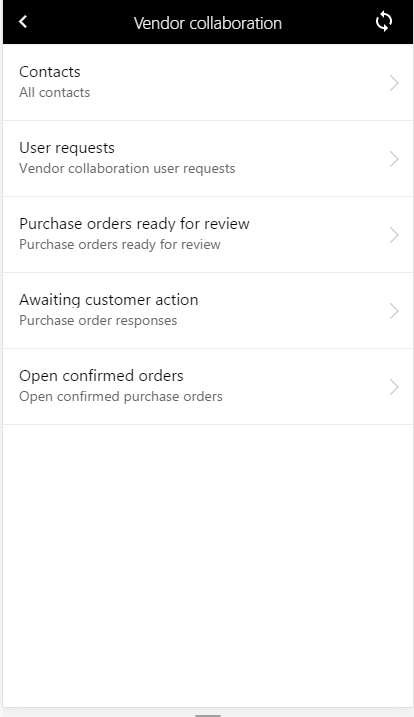
The Vendor collaboration workspace includes the following pages.
The Contacts page lets you see all the contacts that have been set up for the vendor account. It shows the contact person’s name, primary email address, and user alias, if the contact person has an alias. This page also shows whether the contact person’s user account is active. When you select a contact, you see contact details, such as the legal entities that the person is a contact for. You also see contact information, such as a telephone number or an alternative email address.
User requests
The User requests page lets you see all the user requests that you’ve submitted via the vendor collaboration web interface. You can also follow the status of those requests. When you select a user request, you can see what was requested, add or inactivate a user, change security, and see which security roles were requested for the user.
Purchase orders ready for review
The Purchase orders ready for review page lets you see all the purchase orders that the customer has sent, but that haven’t yet been responded to. You can view selected information about the order, such as which products were requested and when those products should be delivered. Price information is also available, depending on the configuration of the vendor.
You can also see whether the purchase order has notes or attachments. However, to open notes and attachments, you must use the vendor collaboration web interface in the web client. Select Purchase order line to see all the lines together with their details. For each line, an indicator will show whether there are notes or attachments, or whether the delivery address differs from the delivery address that is shown on the header.
To respond to the purchase order, you must use the vendor collaboration web interface in the web client.
Awaiting customer action
The Awaiting customer action page lets you find purchase orders that you or another person in your company who has access to vendor collaboration has responded to. The purchase orders are visible in this list only if the customer must take one of the following actions on the purchase order:
- If the purchase order was rejected, the customer must either update or cancel the original order, and then send it again. When the purchase order is sent again, it no longer appears on the Awaiting customer action page.
- If the purchase order was accepted with changes, the customer must either update the original order and then send it again for review, or update the order per the requested changes and then confirm it immediately. In both cases, the purchase order no longer appears on the Awaiting customer action page.
- If the purchase order was accepted but still appears on the Awaiting customer action page, the purchase order wasn’t automatically confirmed when it was accepted. It’s now waiting for a purchasing agent to change the order status to Confirmed. Typically, a purchase order is considered an agreement between the customer and the vendor as soon as the vendor accepts the order. Therefore, the update to Confirmed status is usually just a formality.
When you select a purchase order, additional details appear about the response. You can see the line details and response for every line. The line status shows which of the following responses has been given:
- Accepted
- Rejected
- Accepted with changes
- Substituted/Substitute
- Split into schedule/Schedule line
Note that the Delivering field is set to either Yes or No to indicate whether the lines will be delivered. A line might not be delivered because for the following reasons:
- The line was rejected.
- A substitution was made, and the original line isn’t expected to be delivered as requested in the received order.
- The line was split into multiple schedule lines, and the original line isn’t expected to be delivered as requested in the received order.
Any changes that have been made to the order line response are shown. However, uploaded notes and attachments aren’t shown. To view notes and attachments, you must use the vendor collaboration web interface in the web client.
Open confirmed orders
When the purchase order is confirmed by the customer (that is, the status of the purchase order is changed to Confirmed), it appears in the open confirmed order. It will remain in the list until it’s registered as received by the customer.
Next Steps
If you are interested in learning more about Microsoft Dynamics 365 for Finance and Supply Chain Management and the Mobile Application, contact us here to find out how we can help you grow your business. You can also email us at info@loganconsulting.com or call (312) 345-8817.
Related Posts
-
Posted on: January 14, 2026
Businesses using a call center know it’s a vital sales channel for building personal customer relationships, but it also presents...
Read More ›
-
Posted on: January 12, 2026
Because “we’re probably fine” is not a project control strategy. If you’ve ever sat through a project review where the...
Read More ›



