Have you ever had a worker clock-in to Production Floor Execution (PFE) after their shift was scheduled to begin and wondered why they were late? Then, you’re forced to track down the worker to ask them and then manually update their timecard. Fortunately, Microsoft Dynamics 365 (D365) offers a way to prompt users to select an Absence Code if they clock in after their scheduled start time. That Absence Code can then be registered directly onto their timecard. This blog post will walk through how to use Absence Codes.
What It Does
When a worker clocks into the PFE terminal after their designated clock-in time specified in their Standard Time Profile, D365 can automatically prompt them to select an absence code. This can help supervisors quickly understand the reason for their late clock-in directly at the source. Absence Codes can be configured as part of the worker’s Absence Group and can be marked so that they are included in the Absence Report.
How To Configure Absence Codes
Before configuring Absence Codes, you must first create an Absence Group. You can configure an Absence Group by navigating to Time and attendance > Setup > Groups > Absence Groups. Here, you will list an Absence Group Name and Description. You can also specify if the Absence Group should Reduce Flex time, deduct overtime, count for Registration, and specify the Icon number.
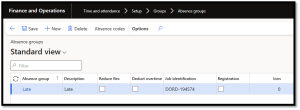
Multiple Absence Groups can be created, each with its own individual code. Once you have one Absence Group, you can select Absence Codes to view and create them. The codes are the prompts users will see and select in PFE after a late clock-in. Here, you can specify an Absence Code name and description. You can link it to the created Absence Group and determine if the Method should measure in hours or days. Each code will receive a Job Identification number. If you mark the code to be included in Registration, users will have the option to select it in PFE if they are clocking in late. You can also mark the code to be included in the Absence Report, where it will display the created Job Identification number.

Based on the configuration shown in this blog article, below are the Absence Codes users will see in PFE after a late clock-in:












