








Reviews and corrects ledger-to-subledger alignment in D365 by fixing posting configurations, inventory profiles, reconciliation logic, GL mapping, and critical reporting procedures.
Evaluated Receipt Settlement (ERS) Set Up in QAD
Posted on: July 21, 2021 | By: David Kwo | QAD Financials, QAD Business Process
When handling intercompany orders and transactions, QAD’s Evaluated Receipt Settlement, or ERS, offers an efficient automated process for comparing receipts with purchase orders. ERS creates a low-risk system for ensuring accurate intercompany transactions while bypassing the wasted effort of matching receipts, invoices, and purchase orders. The specific benefits of QAD’s ERS include:
- Does not require any development
- Runs automatically, reducing risk of user error and increasing accuracy
- Supports fiscal receiving
- Therefore, a good fit for any size of corporation, multi-national or domestic
- Supports price lists inside system
- System honors designated pricing even as prices change over time
This blog details the step-by-step process of setting up ERS in QAD.
Step 1: Run ERS Conversion on existing open purchase orders (not necessary for ERS implementation in a new database)
a. Go to ERS Purchase Order Conversion under the Miscellaneous Utilities menu
-
- Enter “E” to enable ERS for all purchase orders – this automatically converts / updates existing open PO’s?
- Enter “D” to disable ERS for all purchase orders
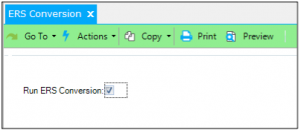
Step 2: Set up ERS control
a. Go to the ERS Control program
b. Check the box next to “ERS Processing” to activate ERS
-
- You will then be asked to run ERS Conversion. Select Yes and allow the conversion to run completely for ERS to remain activated
- Enter a default value ERS Option field (leave blank, 0, or 1)
- Check the field “ERS Packing Slip Error” if you want ERS Processor to print an error on all relevant lines of a PO if a packing slip is blank
- Check “Update GL Average Cost” if you want to ERS to update the item cost at processing time
- Use ERS Invoice Date Option to choose how ERS calculates supplier invoice date
- Enter 0 to use the receipt date of receiver
- Enter 1 to use shipment date of receiver

Step 3: Set Up ERS for Suppliers, Sites, and Items in ERS Maintenance
a. Go to ERS Maintenance to select default ERS processing options
-
- Choose a default supplier
- Choose default site (necessary if you did not select default supplier)
- Enter item number (this makes ERS processing specific to some combination of an item and supplier combination, or supplier and site)
- Enter 1,2, or 3 into the ERS option field
- 1: specifies ERS processing should not be enabled for the combination specified in the fields above
- 2: specifies that ERS Processor should create initial invoice for specified combination
- 3: specifies that ERS Processor should create confirmed invoice for specified combination
- Enter 1, 2, or 3 into ERS Price List Option field to choose which date relevant price list should be called from
- 1: specifies receipt date
- 2: specifies ship date
- 3: specifies order date

Step 4: Purchase Order Maintenance
a. Go to Purchase Order Maintenance > Headers tab > ERS
b. Choose default for Fixed Price
c. Enter 0 or 1 into ERS Option field, or leave blank
-
-
- 0: Choose ERS option at time of ERS processing
- 1: don’t enable ERS processing
- Blank: Choose ERS option at creation of PO line
-
d. Enter 1, 2, or 3 into ERS Price List Option field to choose which date price list is called from
-
-
- 1: specifies receipt date
- 2: specifies ship date
- 3: Specifies order date
-
Next Steps
If you are interested in learning more about ERS and/or maximizing the use of your QAD system, contact us here to find out how we can help you grow your business. You can also email us at info@loganconsulting.com or call (312) 345-8810.


