










Reviews and corrects ledger-to-subledger alignment in D365 by fixing posting configurations, inventory profiles, reconciliation logic, GL mapping, and critical reporting procedures.
Top 3 Pivot Table Features in Business Central
Posted on: November 14, 2024 | By: Page Wildridge | Microsoft Dynamics Business Central
Your business can utilize pivot tables directly within your Business Central software, rather than generating them in Excel. In our last Business Central blog, we covered how to enable this feature within your ERP. If you missed that, check it out here! In this blog, we will cover some small but powerful features that will make creating pivot tables easier.
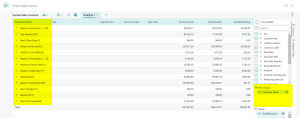
1. Generating Row Groups
Under “Columns” there is a feature called “Row Groups,” which you can utilize to group all of your data with just a drag and drop. Business Central will automatically group your data, and generate important sums within those groups. This includes the sum of unit cost, unit price, and more. All the features require no extra steps for users- let Business Central do the hard work for you!
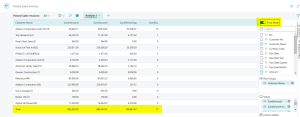
 2. Turn on “Pivot Mode”
Clicking Pivot Mode “on” will change the way that your data is displayed, and turned into a Pivot table rather than a list. When you highlight your items, the data will be automatically summed and filtered for you at the bottom of the page, just like in Excel.
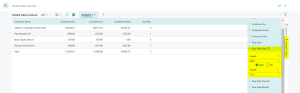
3. Apply Filters
Once you hover over the “Analysis Filters” on the right-hand side of the page, a list of automatically generated filters will pop up for you to apply to your data. You can apply Filters for all of your data fields by selecting the filters and dropping them into your data.
Next Steps
Pivot tables are a powerful way to organize your data according to your needs, while saving energy and time. Small features like these can be a game changer for your day-to-day work. Logan Consulting is committed to ensuring our clients get the most out of Business Central. Contact us today to learn more about harnessing the power of your ERP.


