

Reviews and corrects ledger-to-subledger alignment in D365 by fixing posting configurations, inventory profiles, reconciliation logic, GL mapping, and critical reporting procedures.
Streamline Your Hiring Process with Microsoft Dynamics for Talent
Posted on: November 2, 2017 | By: Jim Bertler | Microsoft Dynamics CRM
Authored by: John Hinchy
In my last blog on Microsoft Talent, (Personnel Management Made Simple in Microsoft Dynamics for Talent), I walked through the simple and self-guided process of hiring a new candidate for an organization. This walked through the administrative steps of opening the job in your Talent system and adding the new position as a ‘Hire’ and an employee of the company. But, before you add a new person as an employee, you must attract candidates and go through the entire lifecycle of attracting qualified candidates, to interviewing, to making the offer. In this blog, I will walk through the easy to follow steps of the Microsoft Talent module called ‘Attract.’
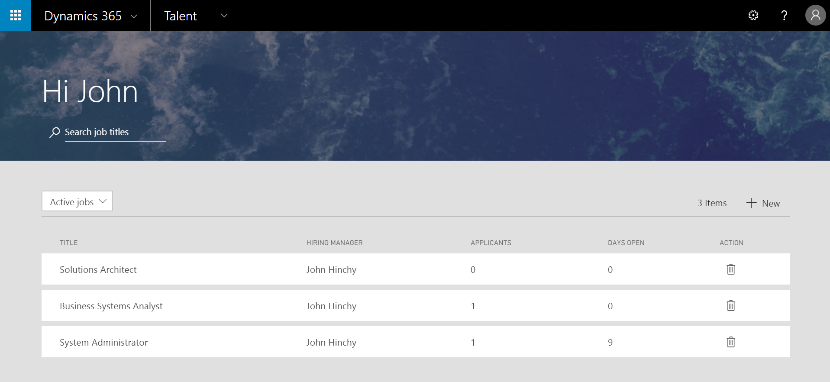
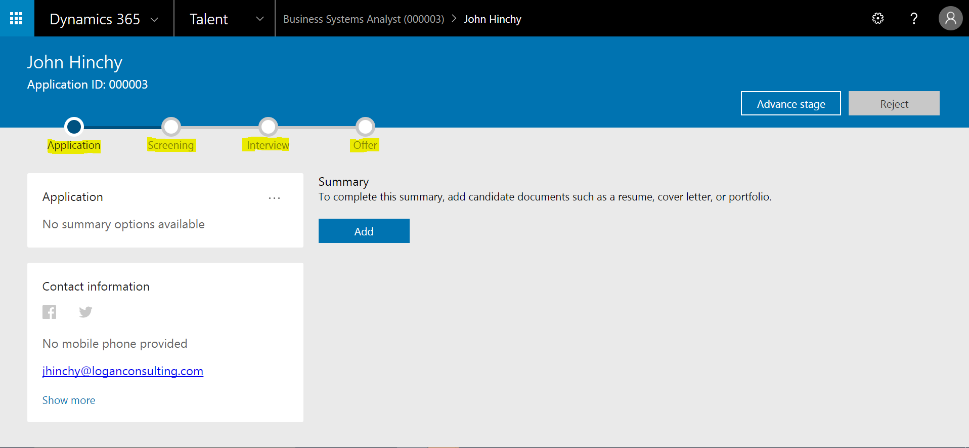
The Attract module is separate from the other two Talent modules of ‘Onboard’ and ‘Human Resources’ and its home screen is a simple layout with a listing of active jobs needing to be filled. Click on the job you would like to fill and from here you can add candidates and other job information and start walking through Microsoft Talent’s defined steps to making an offer. These steps consist of Application, Screening, Interview, and Offer. Once you are in the job screen, click on one of the active candidates to start moving them forward through the pipeline. As you can see in the depiction, the process bar shows you which stage you are at with any candidate.
At the top right of the header are two critical buttons. The first is called ‘Advance stage’ which allows you to move the candidate forward a stage. This button only becomes active when you have completed the necessary steps to allow the candidate to move forward. This acts as a helpful check for a hiring manager to be sure they’ve completed all actions and tasks needed in each stage. For example, until you add a summary in the application process, usually this consists of uploading a resume, it will not let you advance. The second button is Reject. This is important because at any time you can reject the candidate to remove them from the pipeline and not continue through the process.

In the screening process, you will pick a list of dates that once chosen, will be automatically emailed to the candidate in order to set up a phone screen. Once the candidate confirms through your email the date, you are ready to conduct the screen. Before you do, you can invite other members from your team and confirm the time or rearrange. Then, you can then conduct the phone screen, add your notes, and decide if the candidate will move on to the next stage of Interview. Also notice, if you include the candidates LinkedIn profile when adding to the system, it will automatically link to the Screening stage so you can review the candidate’s profile while conducting the screen.
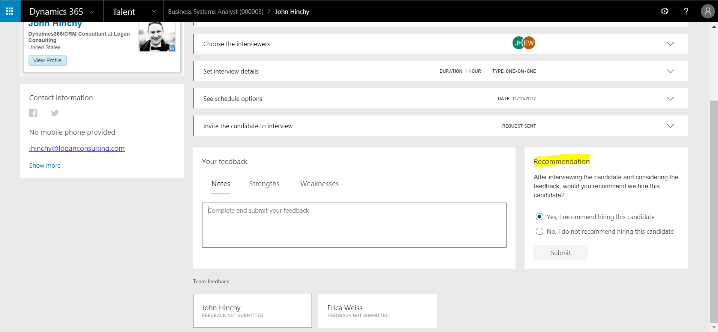
The Interview stage looks similar to the Screening stage, just this time you will be setting up a full interview and most likely coordinating additional team members to take part. Again, you pick a list of dates to send to the candidate, and once they confirm you can start scheduling.
Once confirmed, you will choose other team members involved in the hiring and interview process to coordinate schedules with. Through your active directory, a calendar with your team members’ schedules will appear so that you can choose a time that works for all. Once everything is set, you will send the date, location, and details of each interview. On the day of the interview you will be provided an area to record notes, strengths, and weaknesses. There is also a checkbox for the final step of recommending or not recommending the candidate for the job.

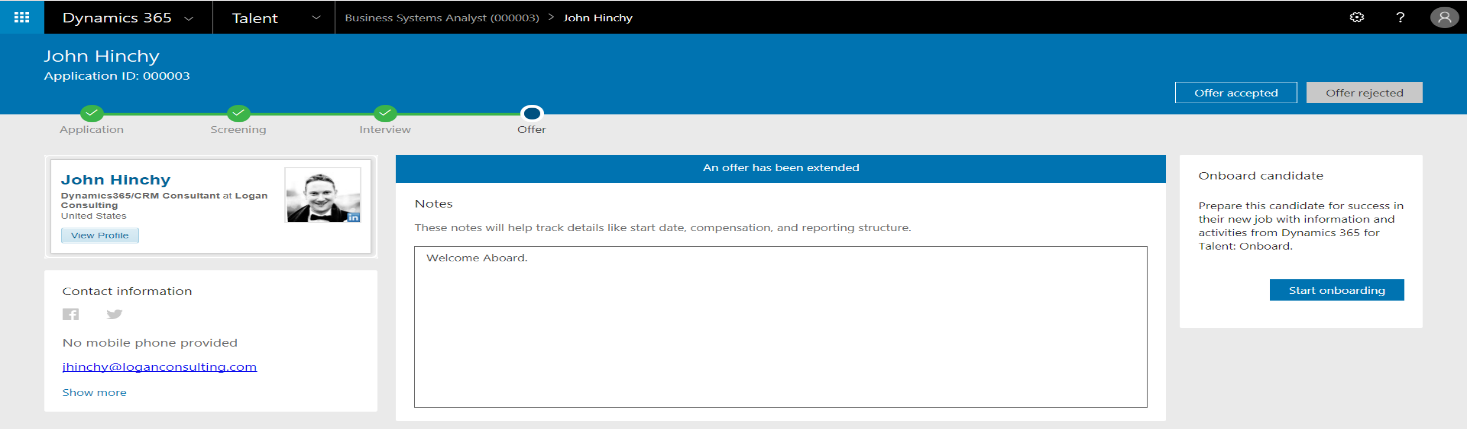
On the next screen, ‘Offer’, you can write down notes to send to the candidate after you call and make the offer. From here, you will click ‘Prepare Offer.’ This will send an email to the candidate asking him or her to contact the hiring manager directly. Once you have verbal confirmation you will click ‘Offer Accepted’ and start the onboarding process.
If you think that a Dynamics CRM system is the next best step for your business, contact Logan Consulting, your Microsoft Dynamics CRM partner of Chicago.