








Reviews and corrects ledger-to-subledger alignment in D365 by fixing posting configurations, inventory profiles, reconciliation logic, GL mapping, and critical reporting procedures.
Setting Up PunchOut E-Procurement External Catalog in Microsoft Dynamics 365 Supply Chain Management to Streamline Order Placement for the Electronics Industry
Posted on: June 23, 2025 | By: Maya Ikenberry | Microsoft Dynamics AX/365, Microsoft Dynamics Manufacturing
In the fast-moving electronics industry, supply chain efficiency isn’t just nice to have—it’s a necessity. Managing large volumes of parts, frequent design changes, and complex vendor ecosystems makes manual procurement both time-consuming and error-prone. Fortunately, Microsoft Dynamics 365 Supply Chain Management offers a feature that can help: the External Catalog within the Procurement & Sourcing module.
With External Catalogs, you can enable PunchOut E-Procurement to directly access your vendors’ websites from within D365. Once configured, your buyers can shop for electronic components—such as capacitors, semiconductors, power supplies, and test equipment—straight from suppliers. Selected items can then be transferred directly into purchase requisition lines with accurate pricing, product codes, and descriptions.
Let’s walk through how to set up the PunchOut E-Procurement External Catalog in D365 for an electronics supplier.
- First, make sure you have your vendor account set up correctly. Navigate to Accounts Payable > Vendors > All Vendors.
- Next, create a new Vendor to set up the external Catalog for. As an example, I will use Staples as the vendor in this blog.
- Once you have your vendor account set up, navigate to the Purchase Order Defaults tab in the vendor master, and turn on the toggle for Send purchase order via cXML.
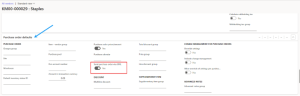
4. Next, navigate to the General tab in the Action bar, and click Categories under the Setup section to set up procurement categories for the vendor.

5. Next, click +Add Category to add a procurement category, and choose a category from the drop-down menu that you want affiliated with this vendor account.

6. Once you have created and set up the vendor account, navigate to Procurement & Sourcing > Catalogs > External Catalogs to configure the external catalog. Here, add a catalog name, description, and turn on the toggle for Open new browser window.
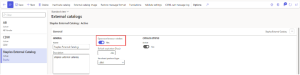
7. Next, link the vendor account you created with this external catalog. Under the Vendor tab, choose your vendor from the drop-down menu.

8. Now, link the same procurement category you linked to the your vendor account, to this external catalog. Under the Procurement category mapping tab, choose the same category.
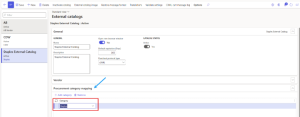
9. Next, the Message format must be correctly set up in order to allow communication between the D365 environment and the Vendor PunchOut website. You will have to write code to ensure accurate communication.

It is important to note that to be able to set up the cXML message format and communication, you must contact the specified vendor for a PunchOut link. Once the vendor provides the link, you must build it into the code for the cXML message.
10. Once the External Catalog is set up, navigate to Procurement & Sourcing > Purchase Requisitions > All purchase requisitions to enter a new order.
11. Now, you will be able to create a new PR and use the External Catalog button to navigate to the vendor website and add items to the shopping cart:
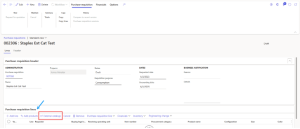


12. Now, add your desired products/items to the shopping cart, and click the Checkout button.

13. This will automatically bring the items back to the D365 environment, to your PR lines:

With constant pressure to reduce time-to-market and maintain tight cost controls, leveraging External Catalogs in D365 is a smart move for electronics companies. By automating and streamlining the purchasing process, you’ll gain a more agile and accurate supply chain—critical advantages in a high-velocity industry.
Next Steps
If you want to learn more about PunchOut E-Procurement in Microsoft Dynamics 365 Supply Chain Management, contact us here to learn how we can help you grow your business. You can also email us at info@loganconsulting.com or call (312) 345-8817.
Related Posts
-
Expense Management: Where Money Either Gets Controlled or Quietly Slips Away
Posted on: March 19, 2026
Most organizations don’t realize they have an expense problem until someone asks a simple question: “Why did we spend that?”...
-
Improving Retail Inventory Traceability and Accuracy
Posted on: March 16, 2026
Retailers do not have a visibility shortage. They have a traceability standard shortage. With Dynamics 365 Commerce and Microsoft’s Inventory...


