








Reviews and corrects ledger-to-subledger alignment in D365 by fixing posting configurations, inventory profiles, reconciliation logic, GL mapping, and critical reporting procedures.
Project Management & Accounting Budgeting
Posted on: June 4, 2025 | By: Maya VanderWoude | Microsoft Dynamics AX/365, Microsoft Dynamics Manufacturing
The Project Management & Accounting (PMA) module in Dynamics 365 can feel overwhelming with its expansive features and capabilities. Some even say you can think of the PMA module as its own ERP system in a way!
Project Management & Accounting can be used for various business processes to manage project financials – from initial estimations to invoicing. It can help track costs, revenue, budgets, and profitability for individual projects. Many different industries such as marketing and manufacturing can use PMA functionality in D365. In marketing, an advertising campaign could represent a set of projects that must be delivered. In manufacturing, a production order relates the various work that must be done to produce some finished goods. These are a few examples of projects that involve resources, schedules, and costs. The Project Management and Accounting functionality in Dynamics 365 can help with the planning, execution, and breakdown of these projects.
One of the many features the PMA module offers is the capability to budget out projects and subprojects. In this blog, we will walk through an example of how to enter individual budgets for subprojects.
1. First, I am going to navigate to Project Management & Accounting > Projects > All Projects.
2. Next, I will create a new Project and set the Project Type to Investment.
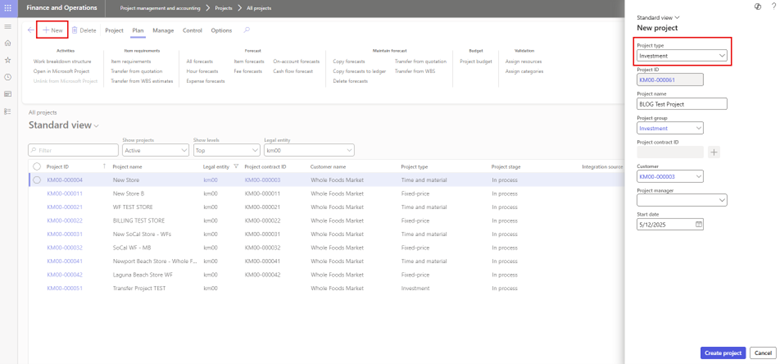
3. Under the Project Team and Scheduling section, I will select a Scheduling Calendar.

4. Next, I will navigate to the Project tab in the action bar and click Subproject under the New section to create a new Subproject. I need to ensure the subproject type is also Investment.

5. Once I have the project hierarchy set up, with the Parent Project highlighted, I am going to scroll down to the Budget and Forecast tab.
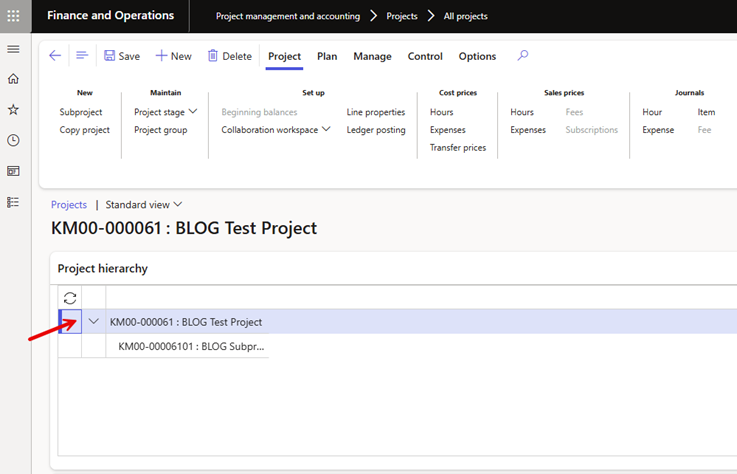
6. Once I have the project hierarchy set up, with the Parent Project highlighted, I am going to scroll down to the Budget and Forecast tab.
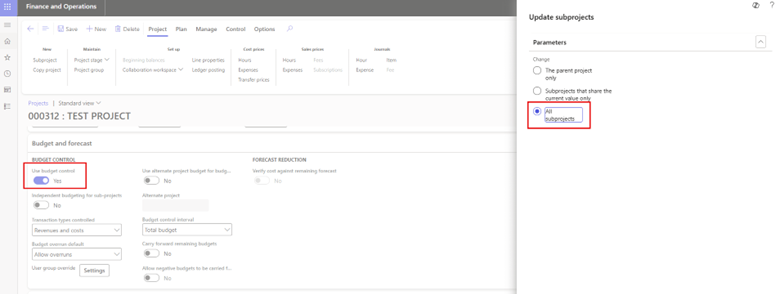
7. Next, I need to turn the toggle for Independent Budgeting for Sub-Projects to Yes. This feature will automatically turn on Budgeting for all sub-projects under this Parent Project and will allow me to enter budgets for each sub-project separately.

8. Now, I am going back to my project hierarchy, and I will choose a Subproject to enter a budget for. With that subproject highlighted, I will navigate to the Plan tab in the action bar and click Project Budget.

9. Next, I will add a new budget by clicking the New button under the Costs section and enter my budget amount in the Original Budget field. I need to include the Transaction Type as well as the Category on this line. Next, I will submit the budget to Workflow for Approval. Prior to this step, you must have the Project Budget Workflow configured and activated – this workflow is required by D365 to allow budgets to be entered for Projects/Subprojects.

10. Once the budget has been Approved, you will see the Subproject budget will update to Total Budget. And the status of the Workflow will change to Approved.
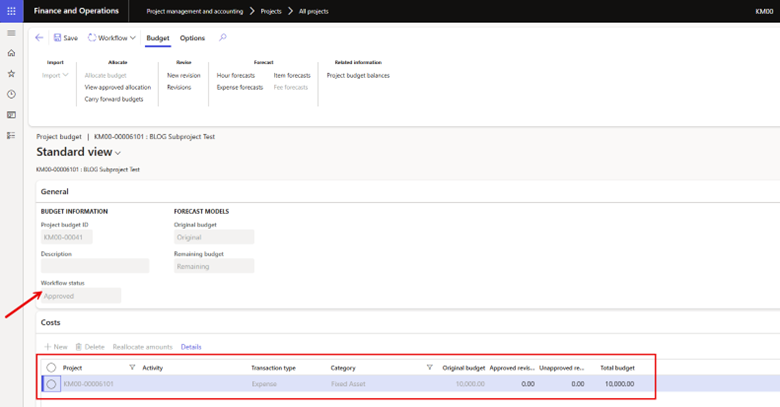
It is very important to note that if you do not turn the ‘Independent Budgeting for Subproject’ toggle on in the Parent Project BEFORE you enter any budgets for the sub-projects, the system will take that budget on the subproject and apply to the entire project hierarchy (including the parent project) – therefore, stopping you from entering any Original Budget individually for each subproject.

This is a great demonstration of one of the many features of the Project Management & Accounting module in Microsoft Dynamics 365. For additional information please feel free to reach out to us at info@loganconsulting.com or (312) 345-8817.
Next Steps
If you want to learn more about Project Management and Accounting in Microsoft Dynamics 365 Finance and Supply Chain Management, contact us here to learn how we can help you grow your business. You can also email us at info@loganconsulting.com or call (312) 345-8817.
Related Posts
-
Improving Retail Inventory Traceability and Accuracy
Posted on: March 16, 2026
Retailers do not have a visibility shortage. They have a traceability standard shortage. With Dynamics 365 Commerce and Microsoft’s Inventory...
-
Fixed Assets in the Age of ESG, Remote Audits, and Digital Finance
Posted on: March 9, 2026
Most companies can tell you how many fixed assets they own. Fewer can quickly tell you which book they sit...


