








Reviews and corrects ledger-to-subledger alignment in D365 by fixing posting configurations, inventory profiles, reconciliation logic, GL mapping, and critical reporting procedures.
Production Floor Interface in Microsoft Dynamics 365 Supply Chain Management: Part 1 Set Up Guide
Posted on: October 28, 2024 | By: Maya VanderWoude | Microsoft Dynamics AX/365, Microsoft Dynamics Manufacturing
In this blog, we will be discussing how users in Microsoft Dynamics 365 Supply Chain Managment (D365) can utilize the Production Floor Execution form to optimize and automate many of their production processes. We will be discussing the capabilities of creating layouts for different employees. In doing so, there is one setup table in particular we will be highlighting that enables the Production Floor Execution Interface. Let’s begin!
Production Control → Setup → Manufacturing Execution → Configure production floor execution. Here is the setup that drives the capabilities of using the Production floor interface.

There are different FastTabs, as well as different buttons located in the ribbon. We will be discussing the key ones that really drive setup. The Design tab button is where users manually create and configure the layout for the Interface. Users should first select “New”, and title the item something that will effectively represent who or what the interface represents. We have created a Default one for all employees, as seen highlighted in blue. After the item is created users should click that button “Design tabs”

This is the form that will display on a user’s screen. These Design tabs each have their own capabilities. For example, a user can create a tab specific for different parts of the workday. In the screenshot above, we have created and highlighted “Break”. Within this item, we can designate selected actions such as Register Downtime or Break. What does this mean? These actions will actually display in the mobile interface for employees and allow them to say take a break via their mobile application. This in real time reflects in the D365 environment and will notify managers, said employee is taking a break.
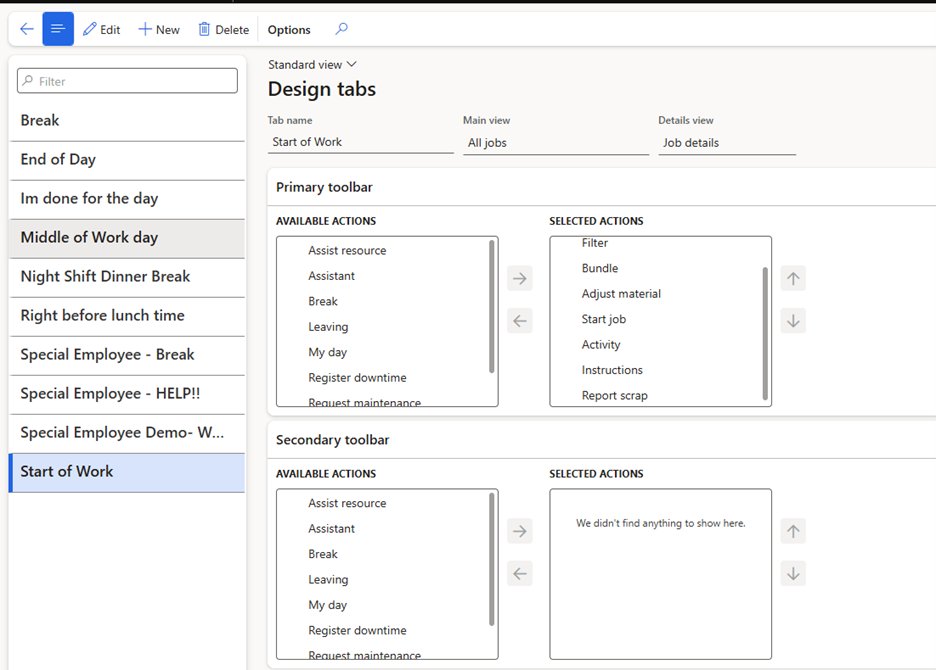
We have also created an item titled “Start of Work”. While configuring this, we have allotted Filter, Bundle, Adjust Material, Start Job, Activity, Instructions, and Report Scrap. This again is 100% configurable for managers and users of D365 to customize how they want Production Floor Execution to function for the company.
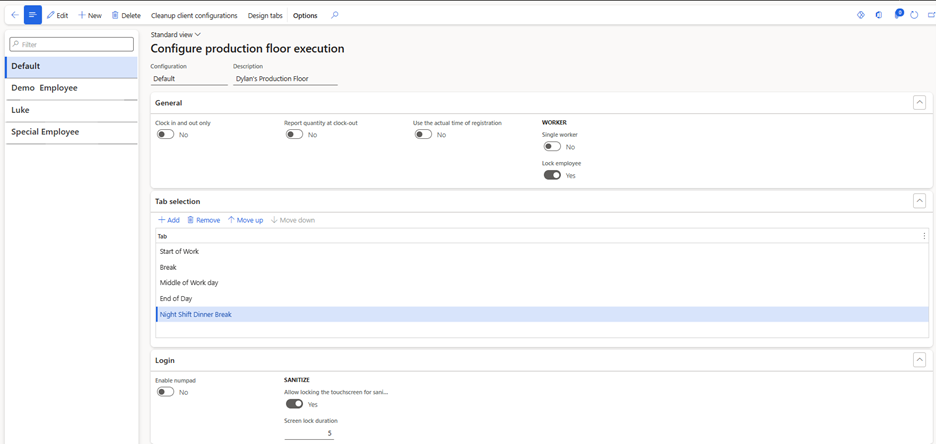
There are 3 key FastTabs within the setup table: General, Tab selection, and Login. General allows for users to set things such as Clock in and out early to Yes or No. These edits will be reflected in how the interface works for individual employees. Next, Tab selection is where we assign those different Designs that have been configured to a specific item. In the screenshot shown above, users will have all tabs and the capabilities that come with them in the Production floor execution. Lastly, Login is a neat tool to customize rules for sanitization around the hand-held mobile device.
Thanks for reading and be sure to check the next blog where I will show all setup here in the Interface itself!!
Written by: Dylan Alicandro
Next Steps:
If you want to learn more about Floor Execution in Microsoft Dynamics 365 Supply Chain Management, contact us here to learn how we can help you grow your business. You can also email us at info@loganconsulting.com or call (312) 345-8817.
Related Posts
-
Accounts Receivable in D365 the Age of Digital Finance
Posted on: March 30, 2026
Most organizations think about Accounts Receivable (AR) when cash is late. Finance sends reminders. Collections escalates. Leadership asks about Days...
-
From Forecast to Fire Drill: Why Demand Planning Fails Without Governance
Posted on: March 25, 2026
Demand forecasts rarely fail because someone chose the wrong algorithm. They fail because too many organizations still treat the forecast...


