








Reviews and corrects ledger-to-subledger alignment in D365 by fixing posting configurations, inventory profiles, reconciliation logic, GL mapping, and critical reporting procedures.
Period 13 Posting for Year-End Closing Adjustments in Microsoft D365 Finance
Posted on: November 5, 2025 | By: Maya Ikenberry | Uncategorized, Microsoft Dynamics AX/365
Written By Kimia Minafar
As organizations prepare for fiscal year-end, one critical process in Microsoft Dynamics 365 Finance and Supply Chain Management (D365 F&SCM) is managing year-end adjustment entries.
D365 has a useful option to allow companies to post their closing period adjustments as ‘closing’ transactions in a separate period, called Period 13, instead of posting the adjustments as ‘operating’ transactions in an operating period, Period 12.
This special posting period, Period 13, is used specifically for year-end closing period adjustments. While the standard fiscal calendar typically includes 12 periods, D365 also includes a Period 13 as a closing period in all Fiscal Calendars:

Many companies use Period 13 to record audit entries, accruals, and final adjustments without affecting operational reporting for the previous year.
- Audit adjustments: Making post-closing journal entries recommended by auditors.
- Accruals and reversals: Recognizing revenue and expenses in the correct fiscal year.
- Reclassifications: Adjusting account balances or moving entries between accounts.
This also allows companies to see their closing adjustments separate from their operating transactions in reports.
Setting up Period 13 in D356 when creating a new Fiscal Year:
1. General Ledger > Calendars > Fiscal Calendar
2. Click New Calendar
3. Add a Calendar Name and Description in the designated fields
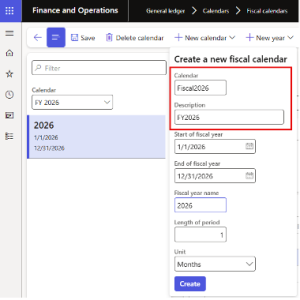
4. Enter your fiscal calendar dates and click Create.

5. Once your calendar has been created, you must scroll down on the periods to see Period 13.

6. Note that Period 13 has a Closing Transaction Meaning all postings to this period will be considered closing transactions
How to post entries to Period 13 in D365:
- General Ledger > Period Close > Closing Period Adjustments
- Click +New
- Enter a closing sheet Description and Name in the designated fields and choose Closing for the transaction Type field. Then, click on the General tab.
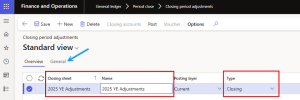
4. In the From and To date fields, enter your fiscal calendar dates. In the Post field, choose the Period 13 date – which is the last day of your fiscal year.

5. Click Save
6. The Closing Accounts button in the Action Pane will become enabled. Click Closing Accounts to navigate into the posting to generate your closing sheet.
7. Next, click Load Balances. Click OK.
8. Your closing sheet will be generated.

9. All opening balances on the closing sheet will match your closing balances on the Trial Balance.
10. Choose the Main Account you want to move an entry from and highlight that row, click Transfers form the Action Pane.

11. Choose the Main Account you want to move that entry to and enter the amount. Click Save.

12. You should then be able to see the adjustment entry you made under the Transfer column on your closing sheet. Once all entries have been entered, click Post from the Action Pane.

Reporting on Period 13 in D365:
Trial Balance
From the Columns to Display drop down menu, you can choose a few different options to see your closing adjustment entries in the Trial Balance – you can choose to include or exclude your Closing transactions by using this option.

* The Trial Balance in D365 does not allow you to exclude operating transactions to view ONLY Closing transactions. If you wish to see a Trial Balance with only closing entries, you must create a Trial Balance report in Financial Reporter.
Financial/Management Reporter:
- A specific column must be built in Financial Reporter for Period 13 postings and closing transactions to be visible in desired reports.
- For further assistance with Period 13 and setting up Financial Reporter in D365, contact us at Logan Consulting!
Best Practices for Managing Period 13 Entries:
- Restrict user access to prevent unintended postings.
- Reconcile subledgers (Accounts Payable, Accounts Receivable, Fixed Assets) before making adjustments.
- Document every entry for audit compliance and transparency.
- Run financial reports (e.g., trial balance, income statement, balance sheet) after adjustments to confirm accuracy before closing the fiscal year.
Next steps:


