


Reviews and corrects ledger-to-subledger alignment in D365 by fixing posting configurations, inventory profiles, reconciliation logic, GL mapping, and critical reporting procedures.
Optimize Inventory Levels with Replenishment in Microsoft Dynamics 365 Supply Chain Management
Posted on: January 15, 2025 | By: Maya VanderWoude | Microsoft Dynamics AX/365, Microsoft Dynamics Manufacturing
Maintaining inventory levels is critical for any warehouse operation. Whether you’re ensuring stock availability for customer orders or avoiding overstocking, replenishment plays a vital role. Microsoft Dynamics 365 Supply Chain Management (D365) offers replenishment functionality to help automate and streamline this process.
In this blog, we’ll explore the basics of replenishment and provide a step-by-step guide to configure it in D365.
What is Replenishment for Inventory Levels in D365?
Replenishment is the process of restocking inventory to maintain desired stock levels. Microsoft Dynamics 365 can automate replenishment by generating work based on predefined rules such as Min/Max requirements to reduce manual intervention.
Benefits of Replenishment in D365
- Reduce Stockouts: Ensure product availability by maintaining adequate inventory levels.
- Prevent Overstocking: Avoid excess inventory, reducing storage costs.
- Improve Efficiency: Automated workflows save time and reduce manual errors.
- Enhanced Customer Satisfaction: Timely replenishment helps meet customer demand without delays.
How to Set Up Replenishment for Inventory Levels in D365
Below is an example of how Replenishment can be configured:
Step 1: Configure a Replenishment Template
The replenishment template defines the criteria for generating work:
- Navigation: Warehouse Management > Setup > Replenishment > Replenishment templates.
- Setup Steps:
- Assign a unique Template ID and description.
- Select the Replenishment Type (e.g., Min/Max, Demand-based).
- Define parameters such as minimum and maximum quantities, demand increment, product and location criteria.
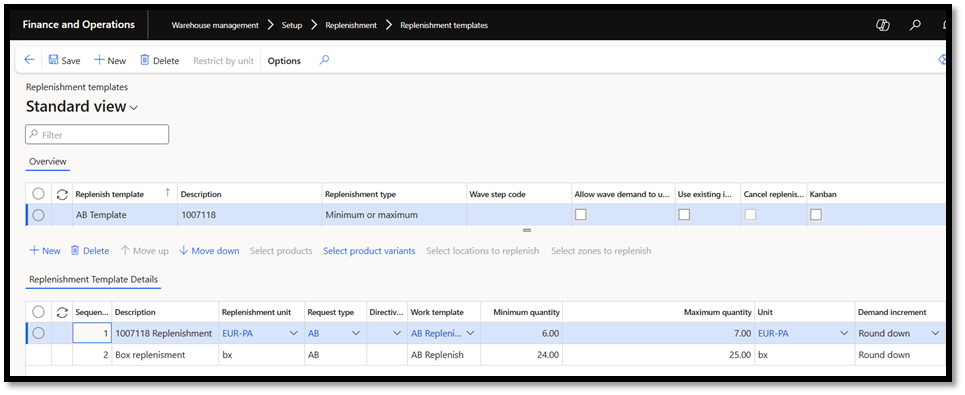
- Save the template to finalize settings.
Step 2: Define a Work Template
Work templates specify the steps for generating replenishment orders:
- Navigation: Warehouse Management > Setup > Work > Work templates.
- Setup Steps:
- Select Work Order Type: Replenishment.
- Add details such as Sequence Number, Work Template Name, Description, and Priority.

-
- Add work template details and assign a Work Class ID.

-
- Save the work template.
Step 3: Create Location Directives
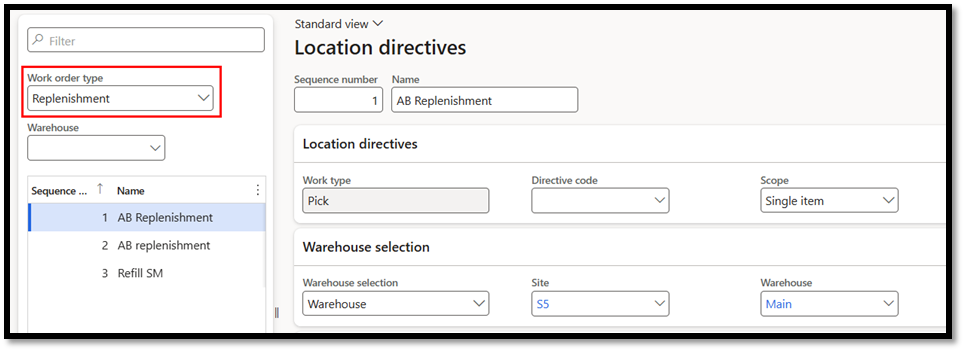
Location directives determine where items are picked from and put during replenishment:
- Navigation: Warehouse Management > Setup > Location directives.
- Setup Steps:
- Select Work Order Type: Replenishment.
- Define Location directives and Warehouse selection
-
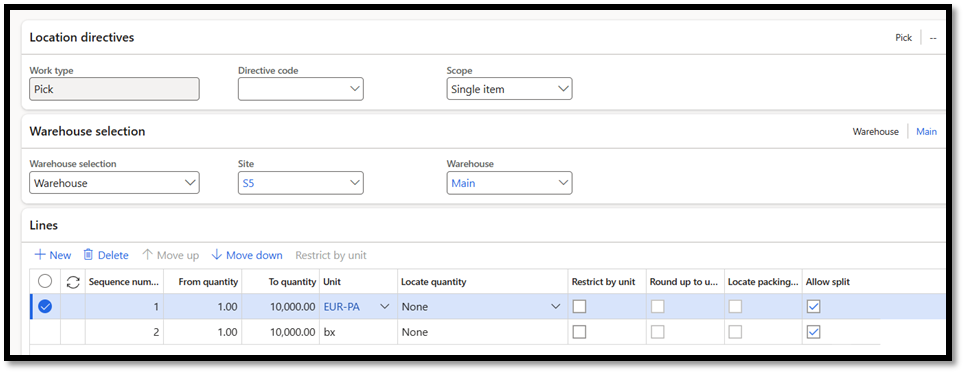
- Define “Pick” and “Put” lines:
- Quantity ranges.
- Units
- Locate quantity
- Allow split
- Define “Pick” and “Put” lines:
-
- Define Location Directive Actions
- Fixed location usage
- Batch-enabled locations
- Location strategies (FIFO, LIFO, Round Up, Etc.).
- Query conditions for items, warehouses, and inventory status.
- Define Location Directive Actions

-
- Save the directives.
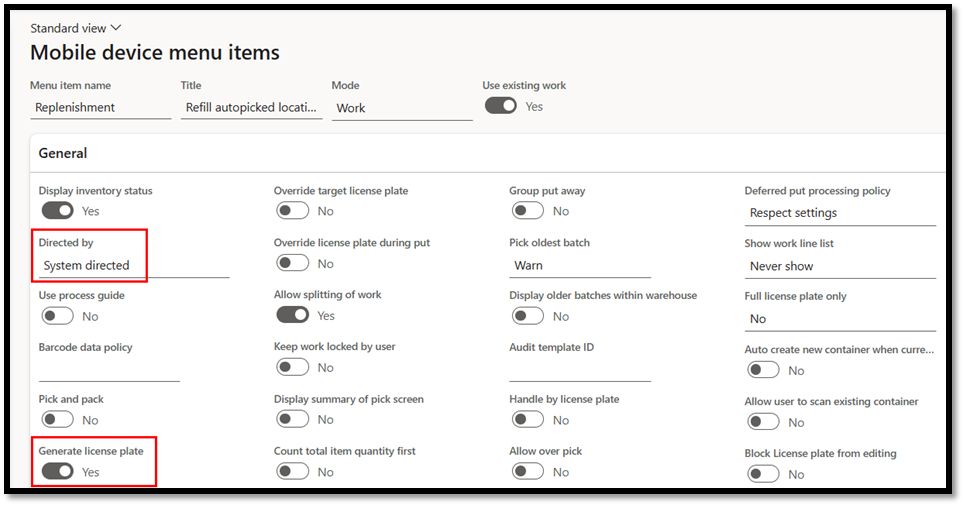
Step 4: Configure Mobile Device Menu Items
Mobile devices enable workers to perform replenishment tasks efficiently:
- Navigation: Warehouse Management > Setup > Mobile Device > Mobile Device Menu Items.
- Setup Steps:
- Create a menu item in Work mode and enable “Use existing work.”

-
- Configure options such as System Directed workflows and license plate generation.
-
- Assign the replenishment work class ID.
Step 5: Run the Replenishment Job
Generate replenishment work using the configured templates and directives:
- Navigation: Warehouse Management > Replenishment > Replenishments.
- Select the replenishment template and click OK to create work orders.
Best Practices for Replenishing Inventory Levels in D365
- Tailor Templates to Business Needs: Customize templates for specific product and location requirements.
- Automate Jobs: Schedule recurring replenishment jobs to maintain consistency.
- Leverage Mobile Tools: Utilize mobile devices for efficient execution.
- Monitor and Adjust: Regularly review replenishment processes and refine templates to improve accuracy.
Written By: Andrew Beck
Next Steps:
If you want to learn more about Inventory Levels in Microsoft Dynamics 365 Supply Chain Management, contact us here to learn how we can help you grow your business. You can also email us at info@loganconsulting.com or call (312) 345-8817.
Related Posts
-
Cash Flow Control in 2026: Turning Microsoft Dynamics 365 Finance into a Near‑Real‑Time Liquidity Engine
Posted on: February 9, 2026
Cash flow has always mattered. In 2026, it’s the difference between “we can” and “we can’t.” Volatility turned cash from...
-
What To Know About The Upcoming Dynamics 365 Finance & Supply Chain Changes
Posted on: February 5, 2026
The Dynamics 365 Finance and Supply Chain Management 10.0.47 release continues Microsoft’s push toward a more scalable, high-performance ERP—particularly for...


