








Reviews and corrects ledger-to-subledger alignment in D365 by fixing posting configurations, inventory profiles, reconciliation logic, GL mapping, and critical reporting procedures.
Migrating Configuration Data
Posted on: August 22, 2024 | By: Meaghan Andrews | QAD Business Process
Migrating configuration data in AUX is a simple process. Below, we outline the steps to move data from one environment to another. When a change is saved as configuration data, QAD calls this an Artifact and there are many types of artifacts that can be saved including:
- Action Centers
- Activity Tracking
- Alerts
- Application Menus
- Design Layouts
- KPIs
- System Stored Views
- Themes
- Theme Workspaces
- User Stored Views
- Active Stored Views
- Active Themes
- Default Stored Views
The first step to migrating configuration data from one environment to another is to identify which data needs to be migrated. An individual user can migrate their own changes by filtering on the Created By field.

After you have filtered the data down to only the items that need migration then select Actions -> Export Configuration Data. You will see that only the filtered records have been selected but you can further customize the export by checking or unchecking records individually. After you have selected the appropriate data and given the file a meaningful name, then click Submit.

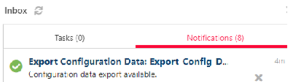
A background process will run to create the data extract and when completed a notification will show in your inbox that the file is ready for download. This will be a zip file that contains all the Artifacts that need to be loaded in the new environment.
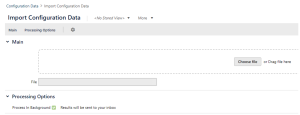
In the new environment navigate to Configuration Data and select Actions -> Import Configuration Data. Drag and drop or choose the zip file that was created in the previous step. The import can be set to process in the background or on the screen. For large datasets it is best to process in the background.
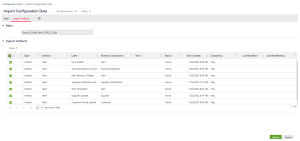
Verify and select data as needed and then click submit to start the import process.
If Process in Background was selected, then a notification will be sent to your inbox when the import process has completed. The Configuration Data has now been migrated and will be ready to use in the new environment.
Next Steps
If you are interested in learning more about migrating configuration data, contact us here to find out how we can help you grow your business. You can also email us at info@loganconsulting.com or call (312) 345-8817.


