


Reviews and corrects ledger-to-subledger alignment in D365 by fixing posting configurations, inventory profiles, reconciliation logic, GL mapping, and critical reporting procedures.
Maximizing Your Data with Dynamics CRM Power Platform: Part XII
Posted on: June 12, 2025 | By: Page Wildridge | Microsoft Dynamics CRM
Server-Side Synchronization in Dynamics 365 CRM
In Episode 11 of our “Maximizing Your Data” series, we explored the benefits of concurrency control in Power Automate and the advantages of implementing parallel execution. This month, we will review the practical aspects of server-side synchronization in Dynamics 365 CRM, examining its benefits, implementation strategies, and impact on administrators and end users.
Understanding Server-Side Synchronization
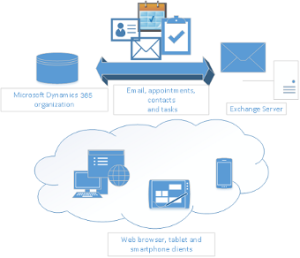
Server-side synchronization enables seamless integration between Dynamics 365 CRM and email systems like Exchange Online, Exchange Server, and POP3/SMTP servers. Server-side synchronization automatically syncs emails, appointments, contacts, and tasks on the server, eliminating the need for manual tracking or client-side synchronization.
Benefits for Administrators
Centralized Email Management – Administrators can configure synchronization settings across the organization, ensuring consistency and reducing manual intervention.
Improved Data Accuracy – The system accurately records every customer interaction through automatic syncing. This prevents discrepancies between CRM and email systems.
Reduced Dependency on Client Applications – Unlike client-side synchronization, server-side sync operates independently of Outlook, improving reliability and performance.
Benefits for Enhancing User Experience
Seamless Appointment & Task Syncing – Users can schedule meetings and track tasks directly within Dynamics 365. Following scheduling, your email system will update directly with these updates.
Consistent Contact Management – Dynamics 365 automatically synchronizes contacts that are created or updated within CRM with Exchange, ensuring accessibility across platforms.
Effortless Email Tracking – Integrated mailboxes automatically link sent and received emails to relevant CRM records, streamlining communication history.
Implementation Strategies
Configuring Mailboxes – Administrators must approve user email addresses and enable mailboxes for server-side synchronization.
Choosing the Right Sync Scenario – Organizations can connect to Exchange Online, Exchange Server, or POP3/SMTP servers based on their infrastructure needs.
Setting Up Default Sync Filters – Customizing synchronization filters ensures that only relevant records (appointments, contacts, tasks) are synced.
Defining Email Tracking Preferences – Users can configure their settings to track all emails, emails only from leads, contacts, or accounts, or even restrict tracking to specific conversations. This level of customization ensures that CRM records stay relevant without unnecessary clutter.

Next Steps
In this episode, we explored the benefits of server-side synchronization in Dynamics 365 CRM and how it enhances data accuracy, user experience, and administrative efficiency. By leveraging this feature, organizations can streamline communication and improve data consistency. Stay tuned for Episode 13, where we’ll continue to explore innovative strategies to maximize your automation capabilities. If you have any questions or would like to learn more, please reach out and schedule time with our team. We hope to speak with you soon!


