










Reviews and corrects ledger-to-subledger alignment in D365 by fixing posting configurations, inventory profiles, reconciliation logic, GL mapping, and critical reporting procedures.
Maximizing Your Data with Dynamics CRM Power Automate: Part IV
Posted on: August 28, 2024 | By: Page Wildridge | Microsoft Dynamics CRM
Streamlining Workflows for Efficiency and Accuracy
In Episode 3 of our “Maximizing Your Data” series, we explored essential tips for maintaining high data quality in D365 CRM, emphasizing the importance of clean, reliable data for informed decision-making and user satisfaction. This week, we’re diving into another key aspect of maximizing your D365 CRM: automating processes to streamline workflows and improve efficiency. By reducing manual tasks and enhancing data accuracy, automation can transform the way your team operates, allowing them to focus on higher-value activities and drive better business outcomes. Let’s look at how you can start implementing these automations in your environment.
Automating Lead Assignment
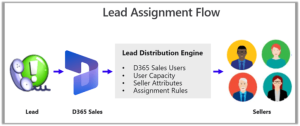
Automating lead assignment in Dynamics 365 (D365) CRM can save your sales team a significant amount of time. Instead of manually routing leads, you can set up a workflow that assigns them based on specific criteria like location or product interest. This ensures that every new lead is immediately directed to the right sales rep, speeding up the follow-up process.
Streamlining Case Management
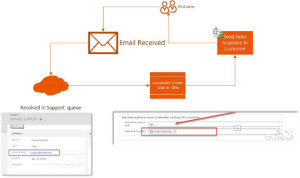
For customer support teams, managing incoming requests efficiently is crucial. With D365 CRM, you can automate the creation and assignment of cases. By using auto record creation rules, D365 can automatically turn an email from a customer into a case. Additionally, it caan assign it to the appropriate agent, and even send an acknowledgment email. This not only reduces the risk of missing cases but also enhances your team’s response time.
Keep Data Accurate
Keeping customer data up to date is vital for making informed decisions. You can automate updates to related records in D365 CRM whenever customer details change. For example, if a customer’s contact information is updated, a workflow can automatically refresh related records, ensuring that everyone in your organization has access to the most current data.
Implementing Your Automations
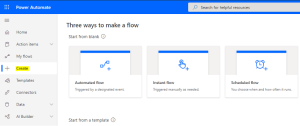
To implement these automations in the Power Apps portal, navigate to the “Power Automate” section where you can create and manage workflows connected to your D365 CRM environment. Whether automating lead assignments, streamlining case management, or ensuring data accuracy, Power Automate lets you build custom flows tailored to your business needs. Start by selecting “Create” to design a new flow, using templates or building from scratch. Then, you can define triggers, conditions, and actions in an intuitive interface. By using Power Automate within the Power Apps portal, you’ll enhance efficiency, reduce manual tasks, and optimize your D365 CRM for better business outcomes.
Next Steps
In this episode, we covered the power of automating processes in D365 CRM. We also demonstrated how to streamline workflows using the Power Apps portal. By implementing these automations, you’ll reduce manual tasks. Additionally, you improve data accuracy and boost overall efficiency, allowing your team to focus on more strategic activities. Stay tuned for Episode 4, where we’ll continue to explore innovative strategies to maximize your data capabilities.
If you have any questions or would like to learn more, please reach out to schedule time with our team here. We hope to speak with you soon!


