








Reviews and corrects ledger-to-subledger alignment in D365 by fixing posting configurations, inventory profiles, reconciliation logic, GL mapping, and critical reporting procedures.
How to use the Inventory Consistency Check in Microsoft Dynamics 365 to Fix On-Hand Inventory Discrepancies
Posted on: June 16, 2025 | By: Maya Ikenberry | Microsoft Dynamics AX/365, Microsoft Dynamics Manufacturing
Have you ever opened your on-hand inventory list in Microsoft Dynamics 365 (D365) and thought, “Something doesn’t look right”?
Maybe an item shows a physical quantity on-hand, but there’s no available inventory even though nothing appears to be reserved. Maybe an inventory transaction occurs, but your on-hand quantities aren’t reflecting the change. If your inventory balances don’t seem to line up with your transaction history or physical counts, don’t worry — you’re not alone. This is exactly where the Inventory Consistency Check can help. It’s a simple but powerful tool that can be designed to identify and fix on-hand inventory discrepancies in just a few steps.
What It Does
The Inventory Consistency Check evaluates your transaction history and rebuilds the on-hand inventory values to reflect true quantities. This job will identify all mismatches and can even correct them automatically. It does so by reading the InventTrans transaction table and then reconstructing the InventSum (On-hand) and WHSInventReserve (Warehouse reserve) tables from scratch. This helps correct any inventory discrepancies that standard transactions haven’t properly handled. Think of it as a data clean-up tool. It’s especially useful after data imports, system upgrades, or any event that may leave the database in a mixed state. The Inventory Consistency Check is also a useful tool to run before closing the books or finalizing inventory counts so you can ensure your data is accurate.
How To Run It
The Inventory Consistency Check can be run by navigating to System Administration > Periodic tasks > Database > Consistency Check. From there, you can filter to the Inventory Management Module and select Items > Inventory Transactions and On-hand. You can specify if you would like the system to Check for discrepancies or automatically Fix them. You can select a From Date that the job should check from.
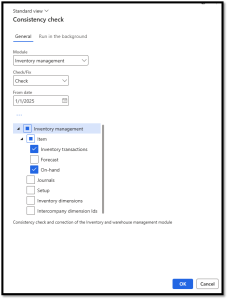
This job can be resource intensive and slow, depending on how far back the From Date is set, how many items, and how many inventory transactions have taken place over that time span. Because of that, it is recommended to run in batch during non-peak hours. There is also the ability to filter and only have the job run for a specific item or group of items which will reduce the jobs runtime significantly. Once the job runs and completes, check the Infolog for any messages. The Inventory Consistency Check will show all records that were found / corrected and will list any unexpected errors that remain.
Best Practice Tip
It is recommended to run the Inventory Consistency Check as a part of your month-end inventory procedures. Running this job regularly will help catch issues early before they begin to pile up or impact financials.
Next Steps
If you want to learn more about the Inventory Consistency Check in Microsoft Dynamics 365 Finance and Supply Chain Management, contact us here to learn how we can help you grow your business. You can also email us at info@loganconsulting.com or call (312) 345-8817.
Related Posts
-
Accounts Receivable in D365 the Age of Digital Finance
Posted on: March 30, 2026
Most organizations think about Accounts Receivable (AR) when cash is late. Finance sends reminders. Collections escalates. Leadership asks about Days...
-
From Forecast to Fire Drill: Why Demand Planning Fails Without Governance
Posted on: March 25, 2026
Demand forecasts rarely fail because someone chose the wrong algorithm. They fail because too many organizations still treat the forecast...


