


Reviews and corrects ledger-to-subledger alignment in D365 by fixing posting configurations, inventory profiles, reconciliation logic, GL mapping, and critical reporting procedures.
How to Configure Mobile Devices for Warehouse Work in Microsoft Dynamics 365 F&SCM
Posted on: July 7, 2025 | By: Maya Ikenberry | Microsoft Dynamics AX/365, Microsoft Dynamics Manufacturing
In a fast-paced warehouse environment, mobile devices are key to executing and tracking operations efficiently. Microsoft Dynamics 365 Finance and Supply Chain Management (D365 F&SCM) offers a powerful Warehouse Management mobile app that enables users to perform tasks like receiving, picking, cycle counting, and inventory movements—all from a handheld scanner or mobile device.
In this post, we’ll walk through the essential steps to configure mobile devices for warehouse operations in D365 F&SCM, including setting up mobile device users, creating mobile menu items, and configuring the mobile app.
Step 1: Enable the Warehouse Management Mobile App
Before you configure devices, make sure the Warehouse Management mobile app is enabled and installed:
-
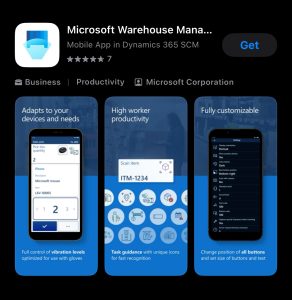
Install the app: Download the “Warehouse Management” app from Microsoft on your mobile device (available for Android and iOS).
-
Enable the feature: In D365, navigate to Feature management, search for Warehouse Management app, and enable it if it’s not already active.
Step 2: Set Up Users for Mobile Devices
Each warehouse worker using a mobile device needs a mobile device user account. These are separate from D365 user accounts and are specific to warehouse operations.
-
Go to Warehouse Management > Setup > Worker.
-
Select or create a worker, and assign a Default user ID.
-
Go to Warehouse Management > Setup > Mobile device > Mobile device users.
-
Create a new mobile user with:
-
User ID: Matches the worker’s default user ID.
-
Password
-
Warehouse (optional, to restrict user access)
-
Assign the appropriate User warehouse and Default work user ID.
-
Step 3: Configure Mobile Device Menu Items
Menu items define what actions users can perform (e.g., pick, receive, move inventory).
-
Go to Warehouse Management > Setup > Mobile device > Mobile device menu items.
-
Create new items for tasks like:
-
Work: Picking, receiving, replenishment.
-
Indirect: Break, login, view work list.
-
Inventory: Movement, cycle count, adjustments.
-
-
Choose an appropriate mode:
-
Work (linked to system-directed work)
-
Indirect (not linked to work)
-
Inventory (manual inventory updates)
-
-
Define the Directed by logic (User-directed or System-directed).
-
Optionally set up Display settings to customize the prompts shown to users.
Step 4: Build Mobile Device Menus
Menus help organize tasks and make it easier for users to navigate on mobile devices.
-
Go to Warehouse Management > Setup > Mobile device > Mobile device menus.
-
Create a new menu and add the desired Menu items.
-
Nest submenus if needed to group similar tasks.
-
Assign the menu to specific users or warehouses.
Step 5: Configure Warehouse App Connections
The mobile app needs to connect to your D365 environment.
-
Open the mobile app on the device.
-
Tap + Add connection.
-
Enter:
-
Name: A friendly name for the connection.
-
URL: The D365 base URL (e.g.,
https://{yourenvironment}.cloudax.dynamics.com). -
Company: Your legal entity (e.g., USMF).
-
-
Click Save and log in with the mobile device user ID and password.
Step 6: Test the Mobile Device Functionality
Once everything is set up:
-
Have a user log in with their mobile credentials.
-
Navigate through the menu to ensure the correct options are visible.
-
Perform a test transaction, like a picking or cycle count.
Troubleshooting tips:
-
Double-check menu item configurations if options aren’t showing.
-
Make sure mobile users are linked to valid workers and warehouses.
-
Validate security roles if login fails.
Final Thoughts
Configuring mobile devices in D365 F&SCM ensures your warehouse workforce can complete tasks efficiently and accurately, with real-time data syncing into your system. The flexibility of the Warehouse Management mobile app allows you to tailor workflows to fit your unique operational needs.
For more advanced scenarios, consider:
-
Barcode Scanning Integration
-
Customizing Mobile Steps Using Power Apps or X++
-
Using Task Interleaving for efficiency gains
Next Steps
If you want to learn more about managing warehouses with your mobile device in Microsoft Dynamics 365 Finance and Supply Chain Management, contact us here to learn how we can help you grow your business. You can also email us at info@loganconsulting.com or call (312) 345-8817.


