


Reviews and corrects ledger-to-subledger alignment in D365 by fixing posting configurations, inventory profiles, reconciliation logic, GL mapping, and critical reporting procedures.
How to Handle Shipping Charges in Acumatica
Posted on: March 15, 2021 | By: Guy Logan | Acumatica
Acumatica offers a variety of features for all branches of business operations, including shipping and freight management. Often, businesses need to send freight charges to customers. Typically, these charge notifications use a complicated formula based on the customer’s shipping location, the method of shipping, and other relevant factors. Fortunately, Acumatica’s modern features allow for flexibility and ease of use during the setup of shipping terms that will calculate the freight and populate the sales order.
The solution to complicated shipping processes: Create a Shipping Term that is associated with the customer’s location and defaulted during sales order entry. In this blog post, we’ll detail the steps in creating this Shipping Term.
1. Create Shipping Terms (CS208000).
-
- Choose Invoice Freight Price either by Shipment or Sales Order
- By Break amount, freight selling prices calculated with any combination of:
- Freight Cost %
- Invoice Amount %
- Flat Fee add on Shipping and Handling (dollar per order)
- Flat Fee add on by Line Handling (dollar per line)

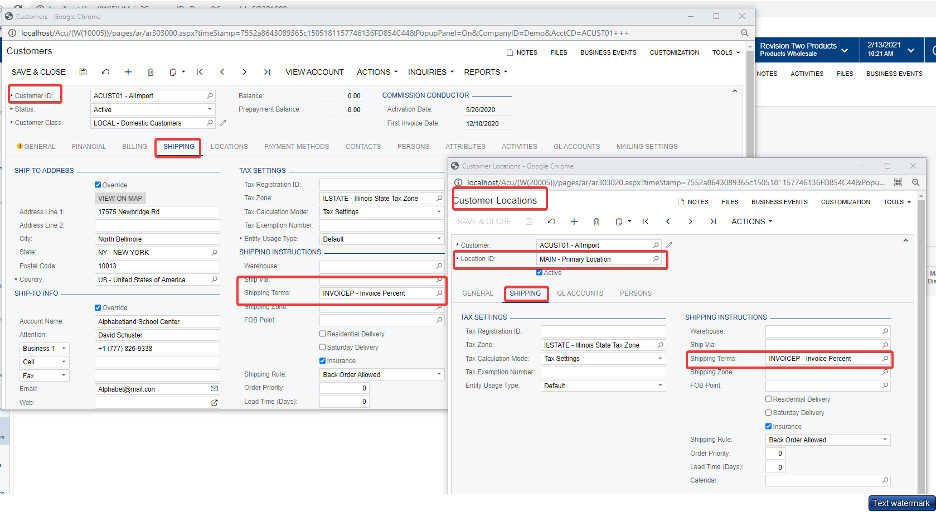
2. Assign Shipping Terms to Customer’s location.
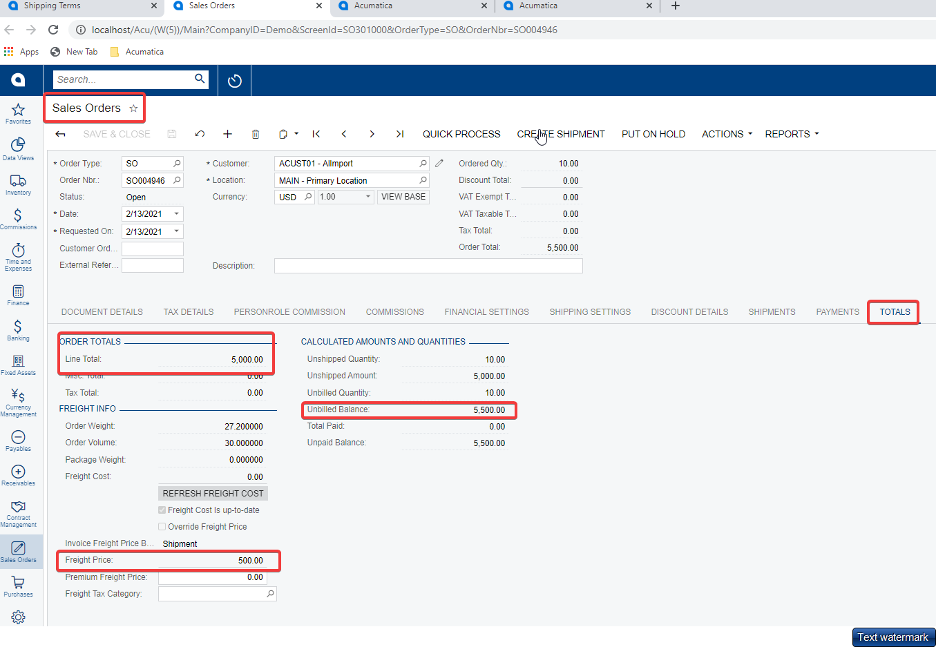
3. Enter Sales Order and validate the Sale Order Shipping setting.

4. Create Shipment — as the shipment updates the freight cost, the freight price will be calculated and applied.
5. On the Invoice, the freight price can be overridden.

6. Freight Revenue Account is determined by the SO type settings.
- Order Type, Customer Location, Ship Via
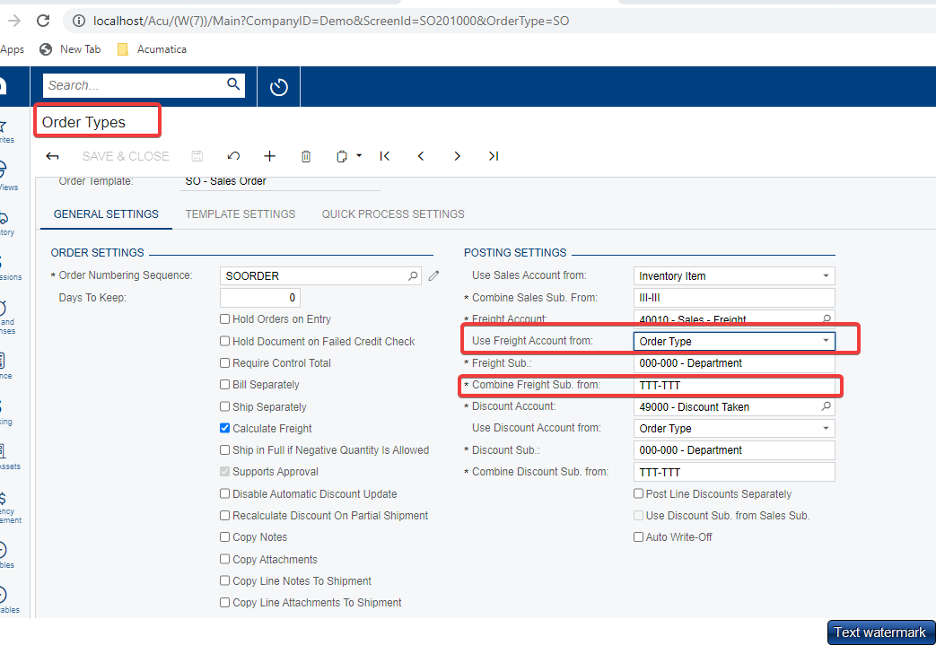
7. Make a Sub Accounts choice
- Branch, Employee, Customer Location, Order Type, Ship Via
Next steps
In unusual times, it is more important than ever to be able to efficiently process data and information. Logan Consulting has helped many clients optimize their businesses with Acumatica and similar software platforms. Contact us to kickstart your digital transformation today.


