










Reviews and corrects ledger-to-subledger alignment in D365 by fixing posting configurations, inventory profiles, reconciliation logic, GL mapping, and critical reporting procedures.
Four Easy Ways to Process Customer Payments in Business Central
Posted on: October 1, 2020 | By: Guy Logan | Microsoft Dynamics Business Central
In Microsoft Dynamics 365 Business Central, payments that are received from customers are recorded in the cash receipt journal. This journal then posts to general ledger, bank, customer, vendor, and fixed assets accounts. You can apply the payment to one or more debit entries when you post the payment, or you can apply from the posted entries later.
There are four ways that you can process customer payments in Business Central. Two of the options allow you to post a payment without applying it to an invoice(s) or credit memo and process the application later. The third option requires you to select the invoice or memo. Keep in mind that the way you process these cash receipts will determine how it displays on the Bank Reconciliation. In this blog post, we’ll be going over the four ways on how you can process customer payments in Business Central.
Cash Receipts Journal
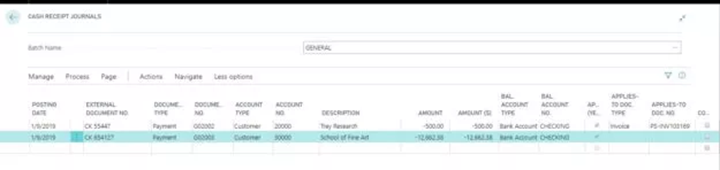
The first and most straightforward method of creating customer payments in Business Central is through the Cash Receipts Journal. When you use the Cash Receipts Journal, you can either apply to one invoice (first line) by selecting the “Applies to Doc. Type” and “Applies to Doc. No.” on the line. Or you can apply to several invoices (second line) by using the “Process Tab” > “Apply Entries” function.
In order to make this appear as a one-line deposit entry on the bank reconciliation, you need to remove the balancing account on each journal line and add one line at the end for the bank account.
Deposit
The second method of processing customer payments is with a Deposit. When you use the Deposit Screen in BC, you list the total deposit amount, then each line represents a check received. You can apply this check to one or many invoices.
If you use the North American Bank reconciliation, this appears as a collapsed deposit. If you use the Bank rec with auto match feature, this lists each line separately. If your bank statement lists each deposited check separately, then this method will work for you. If the statement groups these checks as a daily deposit, then reconciling becomes much more difficult.

Register Customer Payments
Using the Register Customer Payments screen is a quick and easy way to process your payments in Dynamics 365 Business Central.
In this situation, you would first add the check, ACH or credit card information to the related document it is paying and the amount received for that document.
If you post payments individually instead of as one lump sum, it appears on the bank reconciliation as individual lines and does not show the check number.

Payment Reconciliation Journal
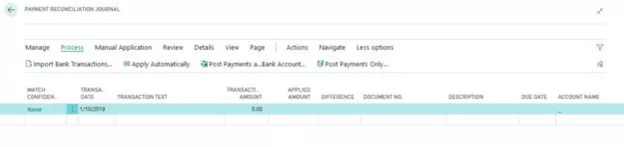
You can utilize the Envestnet Yodlee Bank Feed on this screen to import in your bank statement transactions and utilize the auto match feature.
The Payment Reconciliation Journal page specifies incoming or outgoing payments that have been recorded as transactions on your online bank account. These payments can be applied to their related open customer, vendor, and bank account ledger entries. The lines in the journal are filled by importing a bank statement as a bank feed or file.
You can choose to just post the payments, or to post the payments and reconcile them at the same time.
Next Steps
Want to learn more about easy steps to navigating Business Central? Logan Consulting, your Chicago-based firm, has helped numerous clients across the country utilize the full potential of their technology investments. Reach out to us to learn more about what we can do for you.


