




Reviews and corrects ledger-to-subledger alignment in D365 by fixing posting configurations, inventory profiles, reconciliation logic, GL mapping, and critical reporting procedures.
Five Easy Steps For Generating Pivot Tables in Business Central
Posted on: October 9, 2024 | By: Page Wildridge | Microsoft Dynamics Business Central
Microsoft Dynamics Business Central is a powerful tool with so many great features that some can go overlooked! One example of this is creating pivot tables within the ERP itself rather than generating one in Excel. In this blog, we will cover the easy steps that it takes to create the tables to make your work easier and more efficient.
1. To start, go to “Features Management” and ensure that the Analysis feature is enabled. Next, pick a list that you want to create a pivot table out of to get started.
2. Once you have enabled this feature, you will have the option to toggle an “Analyze” button on or off at the top of your page to start playing with your data.
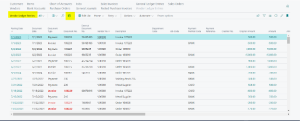
3. By clicking this button on, there will be a “total rows” calculation at the bottom of the page, and a new field on the right-hand side that gives youoptions.
4. By navigating to the options field, you will be given choices just like when you generate a pivot table in Excel. As you start checking/unchecking boxes, the corresponding fields within your data will appear and disappear.

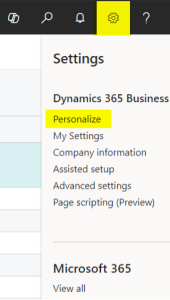
5. If you need to create a field that is not generated on the right-hand side, simply hit “Personalize.” Once you add that field, the information will be represented as a new column within your data.
These steps allow you to create Pivot Tables in Business Central almost the same way you create them in Excel. This allows you to reduce your reliance on Excel and reduce the time you spend exporting data, reformatting, etc. In addition, you can share these Pivot Tables with others and publish so others can rely on data directly from Business Central!
Next Steps
Once you have enabled the Analysis feature, your information will be much easier to work with. You can make Dynamics Business Central do the hard work and data crunching for you! To go even further, you also have the option to connect your ERP with Microsoft Power BI to generate dashboards and reports from the information in your pivot tables. To learn more about connecting the two software, check out our blog here. Additionally, keep an eye out for another Business Central blog next month on more Pivot Table features. Logan Consulting is committed to ensuring your business gets the most out of your ERP. Contact us today to speak to an expert.


