








Reviews and corrects ledger-to-subledger alignment in D365 by fixing posting configurations, inventory profiles, reconciliation logic, GL mapping, and critical reporting procedures.
Downloading New Templates in QAD’s Excelerator
Posted on: August 8, 2021 | By: David Kwo | QAD Financials, QAD Manufacturing, QAD Business Process, QAD Distribution
QAD’s Excelerator allows users to easily and efficiently load data from Excel into QAD. It can be particularly helpful when data needs to be transferred between QAD applications. However, in order to leverage these benefits, users must be able to load Excelerator sets, or templates, into Excel. This blog will walk step-by-step through that process.
Step 1: Selecting Template
a. Go to Inbound menu
b. Enter username and password
c. Go to Configuration tab > Receiver and select version of QAD (should be QADEE)
d. Click the “QADERP” Receiver Set > view to view list of templates
e. Search for template using QDocs name or search under procedures criteria using program name
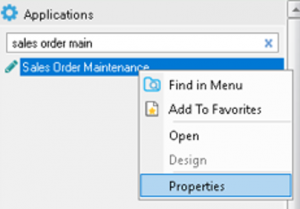
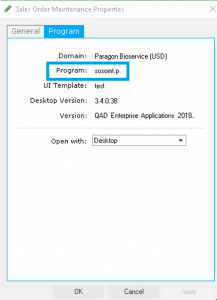

f. Check field next to desired template > generate WSDL
g. Check “Separate schema file” and “Use SOAP headers” fields > hit OK
- This will save the template as a zip file
Step 2: Loading Template into Excel
a. Once downloaded, locate and extract file
- Note that the .xsd file is your file of interest
b. In blank Excelerator file go to Develop tab > Design Template > load QDoc Schema
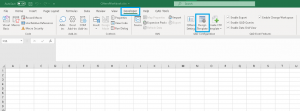
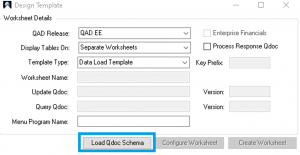
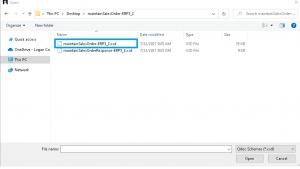
c. When prompted, select .xsd file (non-response version) > Hit create worksheet
You are now ready to begin using Excelerator to modify data in QAD!
Next Steps
If you are interested in learning more about Excelerator and/or maximizing the use of your QAD system, contact us here to find out how we can help you grow your business. You can also email us at info@loganconsulting.com or call (312) 345-8810.


