


Reviews and corrects ledger-to-subledger alignment in D365 by fixing posting configurations, inventory profiles, reconciliation logic, GL mapping, and critical reporting procedures.
Batch Job Set Up
Posted on: August 30, 2024 | By: Meaghan Andrews | QAD Financials, QAD Manufacturing, QAD Business Process, QAD Distribution
In this blog, we discuss batch job set up and the benefits it can provide. Batch jobs in QAD refer to automated tasks or processes that run in the background without user intervention. They perform a series of predefined actions based on a schedule or specific triggers. These tasks can include generating reports, processing data, updating records, and more. The primary advantages of batch jobs include:
- Efficiency: Automating routine tasks reduces manual workload and minimizes human error.
- Consistency: Batch jobs ensure that processes are executed consistently and according to predefined rules.
- Optimize Operations: Automate repetitive tasks such as inventory updates or financial transactions, freeing up valuable time for employees to focus on strategic activities.
- Timeliness: Scheduling jobs to run at off-peak hours or specific times ensures that operations are completed promptly without impacting daily activities.
Setting Up Batch Jobs in QAD
Step 1: Access the Batch ID Maintenance screen (31.14.1)
- In this screen you will set up the Batch ID name, if you want the job to be permanent (meaning is the report processed more than once).
- This Batch ID can be specific to a report you will run or to a specific time where you will run multiple reports in the same batch (Example: Month End).

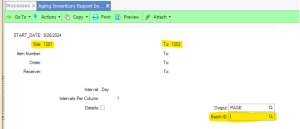
Step 2: Configure Report to Wanted Settings and Assign the Batch ID
- Go to the report or screen you wish to run in batch moving forward.
- Configure the screen with the parameters you wish to run in batch in the future. This would be filtering by Site, Item, Location, Buyer/Planner, etc. to get the information you wish every time this report runs in batch. Note- You can run the reports wide open if that is what is needed.
- In the Batch ID field, select the Batch ID Code set up in Step 1.
- Once the Batch ID is selected in the field, run the report.
Step 3: QAD to Setup Cronjob
- Open a QAD ticket for the QAD team to set up a Cronjob
- In this ticket specify the information set up in steps 1 and 2. Also, include the parameters you wish the job to run on:
- Start Time: Define when the job should start.
- Frequency: Set how often the job should run (e.g., daily, weekly, monthly).
- Duration: Specify how long the job should run, if applicable.
Step 4: Monitoring Batch Job – Batch Request Detail Maintenance (36.14.3)
- Use the Batch Request Detail screens to monitor and update batch jobs
- Batch Request Detail Maintenance (36.14.3)
- Batch Request Detail Browse (36.14.4)
- Batch Request Detail Report (36.14.5)
- In this screen, you can see the run status (Passed/Failed), process failed records again, change the output of the batch, and see submit date/times.

Conclusion
Setting up batch jobs in QAD is a powerful way to enhance efficiency and accuracy in your business operations. By automating routine tasks, you can free up valuable resources and ensure that processes run smoothly and consistently. Following the steps outlined above will help you configure and manage batch jobs effectively, allowing your organization to leverage the full potential of QAD.
Next Steps
If you are interested in learning more about batch job set up, contact us here to find out how we can help you grow your business. You can also email us at info@loganconsulting.com or call (312) 345-8817.


