



Reviews and corrects ledger-to-subledger alignment in D365 by fixing posting configurations, inventory profiles, reconciliation logic, GL mapping, and critical reporting procedures.
Adjusting Views in AUX
Posted on: June 25, 2024 | By: Meaghan Andrews | QAD Business Process, QAD Distribution, QAD Financials, QAD Manufacturing
This is the first in a series of four blogs about customizing business objects in AUX. This first blog provides information about adjusting views in AUX. QAD’s Adaptive UX has many ways for companies and users to personalize their experience. AUX allows companies and users to create their own views of screens to prioritize information that they are often referencing. These views allow for rearranging column order, and filtering on specific criteria to have the information you need readily available when you open a screen or switch views. The system views and your own personal views can be found in the top left corner of the screen next to the screen name.
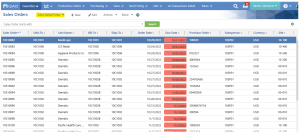
To create a view, first drag and drop columns in the order you would like to see them in your view. It is helpful to put the most used columns to the far left so they are visible when opening the screen. Next, enter any filtering criteria you would like to be added to the view so you will not have to repeatedly enter the criteria in the future. Once you have the screen how you want it, you can click on the view, and select “Save As”.
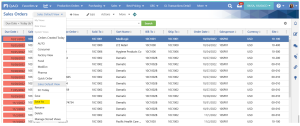
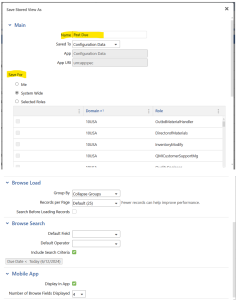
From the Save As pop-up you can name the view, save it to be a personal view (by selecting “Me”), a system wide view where everyone would have access, or a selected roles view where you can limit the view access to individuals with certain roles. You can also change the default records per page, and the browse search field. Be sure to select the “Include Search Criteria” button if you want your search criteria to automatically be available when opening view in the future.
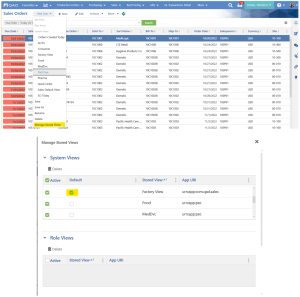
Once a view is created, you can click “Manage Stored Views” to assign a view as the default. This will load this view automatically when you open the screen.
QAD’s view creation is a great way for companies and users to personalize, and efficiently prioritize their daily tasks. Among many of the customizable options QAD offers its users, views are a quick and simple way to enhance the user experience.
Next Steps
If you are interested in learning more about Views in AUX, contact us here to find out how we can help you grow your business. You can also email us at info@loganconsulting.com or call (312) 345-8817.


