Step 1: Create a Cycle Counting Plan
The plan acts as the blueprint for your counting operations.
- Navigation: Warehouse Management > Setup > Cycle Counting > Cycle Count Plans`.
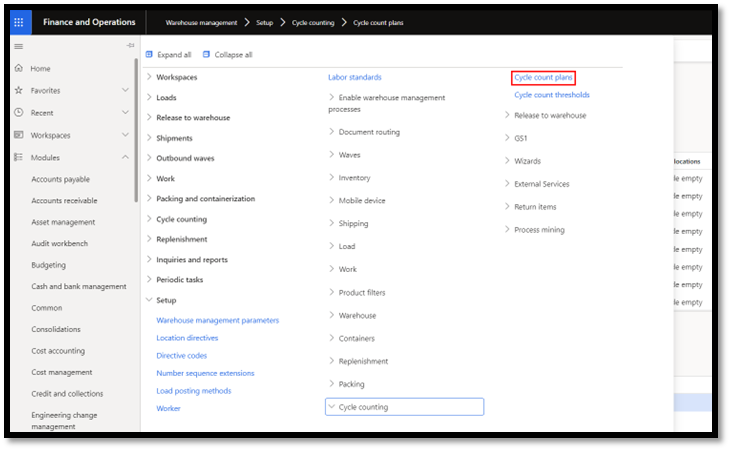
- Configuration:
- Assign a Plan ID and Description.

- Define the maximum number of counts per cycle.
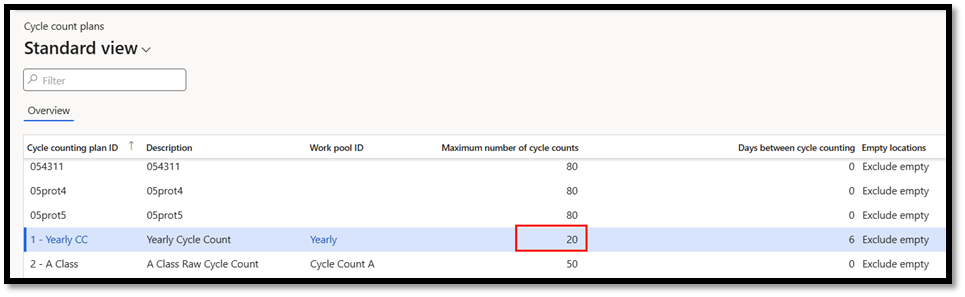
- Set the interval between counts.
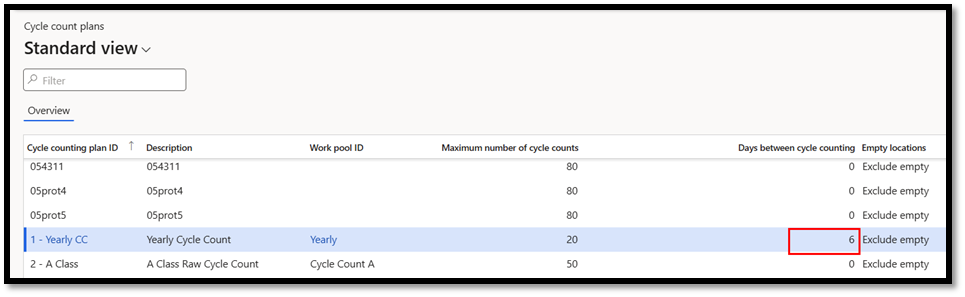
- Choose whether to include empty locations.

- Apply product or location criteria to focus on specific areas or items.


Step 2: Configure Mobile Device Menu Items
Mobile devices allow warehouse staff to complete counts efficiently.
- Navigation: Warehouse Management > Setup > Mobile Device > Mobile Device Menu Item.
- Setup Steps:
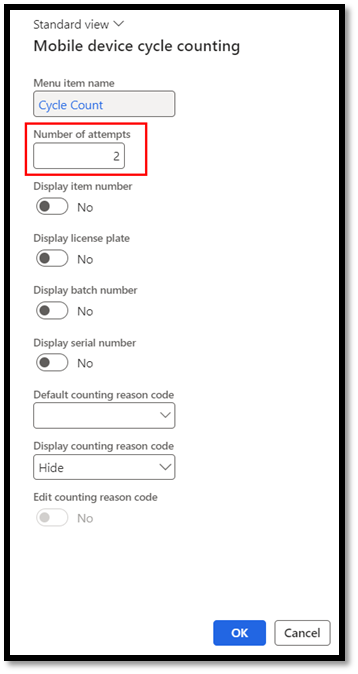
- Create a new menu item with `Work` mode and enable “Use existing work”.

- Select `System Directed` and enable “Handle by License Plate”.

- Customize item visibility, such as number of attempts, displaying product numbers, or serial numbers.
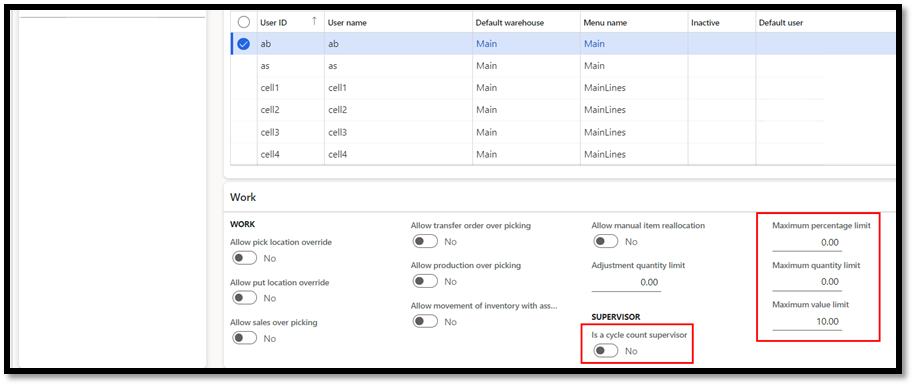
Step 3: Assign and Configure Workers
Tailor the permissions for each user:
- Navigation: Warehouse Management > Setup > Worker.
- Settings:
- Designate users as supervisors if required.
- Establish approval thresholds for percentage, quantity, or value deviations.
Step 4: Process and Review Counts
- Run Cycle Counting Plans:
Generate counting work manually or automate it using recurring jobs.
- Review and Accept Counts:
Supervisors can validate results by comparing expected and counted quantities.
- Accept accurate counts to update inventory records.
- Reject discrepancies for further investigation.
Best Practices for Successful Cycle Counting
- Automate Processes:
Set recurring jobs for consistent counting.
- Focus on High-Value Inventory:
Prioritize frequently moving or valuable stock.
- Utilize Mobile Devices:
Streamline operations by enabling mobile-friendly processes.
- Establish Clear Approval Policies:
Implement discrepancy thresholds for requiring manual review.
Conclusion
Start the new year with confidence by implementing effective inventory management practices. Cycle counting in Microsoft Dynamics 365 is the perfect way to ensure accuracy, reduce downtime, and set your supply chain up for success. Take control of your inventory today and make this year your most efficient yet!
Written by: Andrew Beck